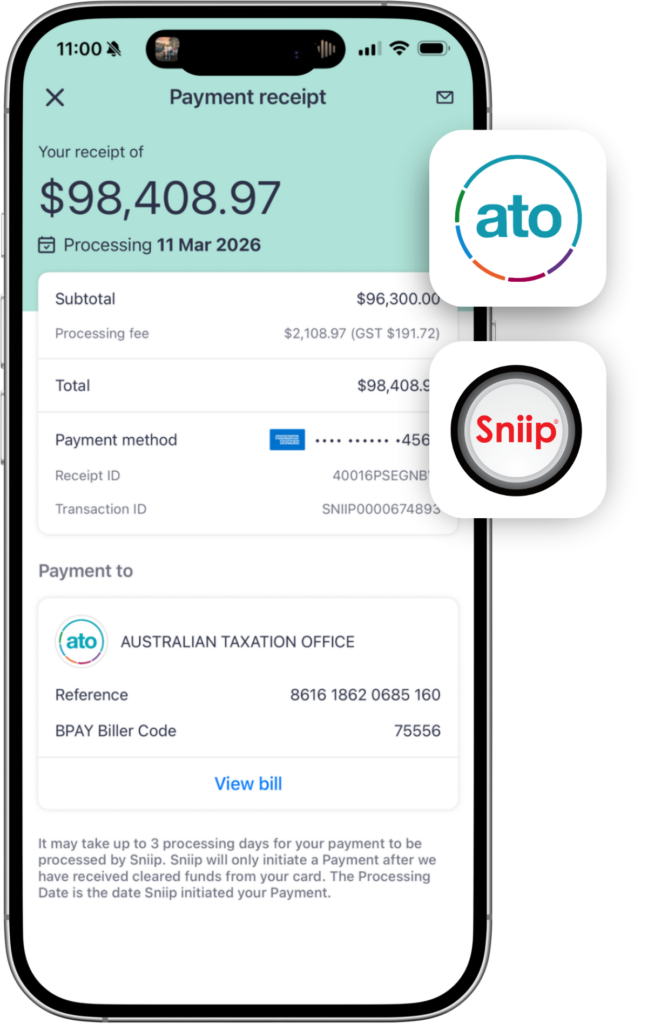
Fast Five FAQ March 2026

1. Can I pay my rent using Sniip?
Rent is a very popular non-BPAY bill with Sniip. To set-up paying your rent with Sniip, please email a copy of your lease agreement to rent@sniip.com.
Please ensure your lease agreement contains the following information:
- The billers BSB + Account Number
- The billers ABN (we cannot accommodate private rentals)
- The total rental amount (you can edit this later)
- Your unique rental reference number, for example JANE653
Our team will collate the details for you into a bill, review it and when approved, add it into your Sniip app ready for payment. You’ll receive a push notification when it’s ready to pay.
Alternatively, if your rental receipt already contains this information – you can upload it into the Sniip app yourself. Simply press the blue ‘+’ button in the top right corner, select, ‘Import from Photo’ and add a copy of your rental receipt.
The app will import your receipt, ask you to confirm the details and will be ready to pay. If you’re the first person to pay the agency, it will go ‘Under Review’ and will be reviewed by our compliance team. You’ll receive a push notification when it’s ready to pay.
2. How do I import a non-BPAY bill (BSB and Account Number)?
Great question! You can absolutely pay a non-BPAY bill through Sniip! If your biller doesn’t accept your credit card directly, you can still pay to their BSB & Account Number through the Sniip app.
Here’s how to import your non-BPAY bill into the Sniip app:
-Open the Sniip app and tap the blue ‘+’ button in the top right corner, elect ‘Import from photo’ or ‘Import from email’. Alternatively, open the PDF of the invoice in your email app on your phone, tap the ‘Share’ button and select ‘Sniip’. (confirm this process for android)
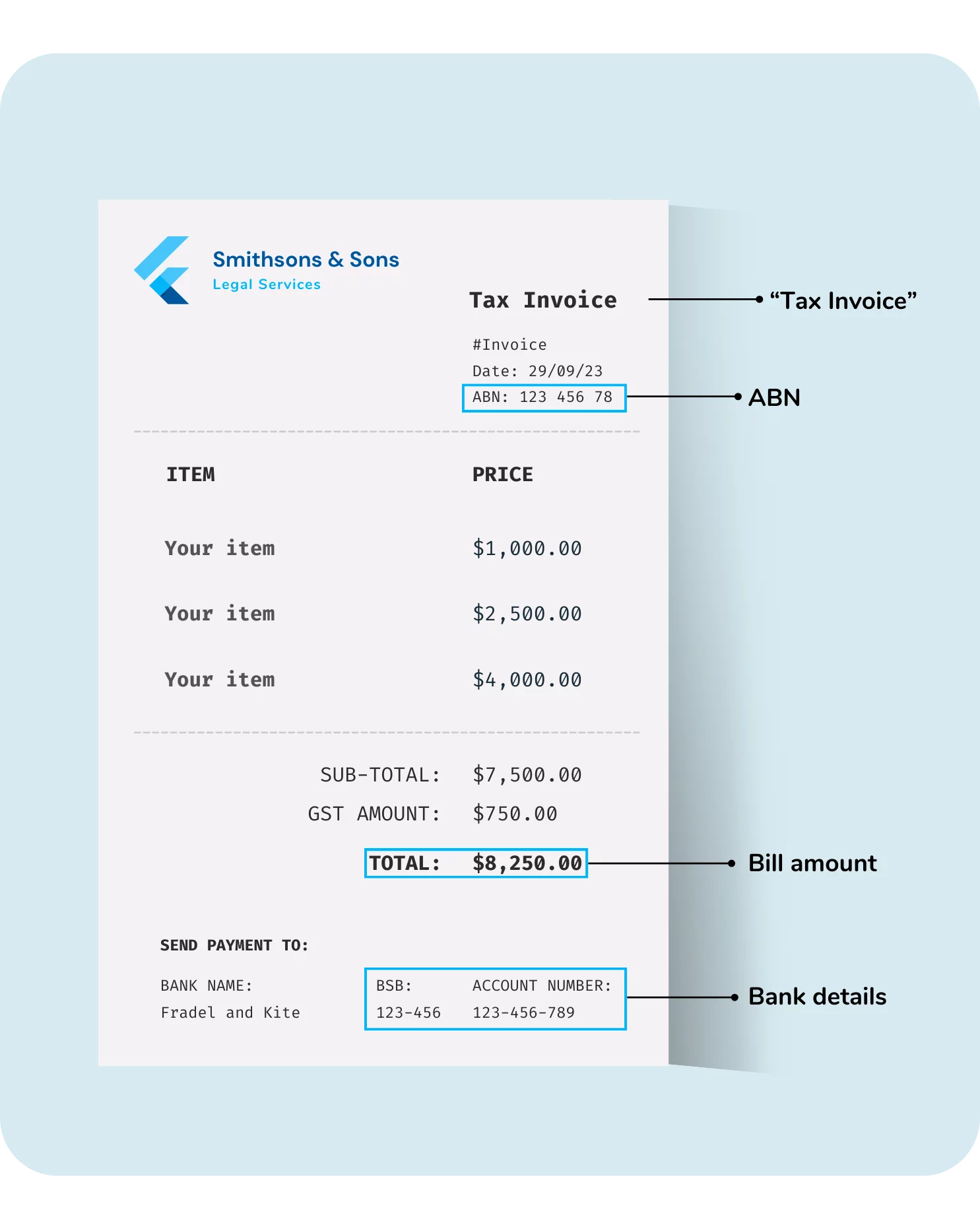
For a successful import, your invoice must include the following:
– The phrase ‘Tax Invoice’ (please note: statements are not accepted)
– The biller’s ABN (we’re unable to accept ACN)
– The total amount due
– The billers Bank Account Details, including BSB & Account Number
– A description of the goods or services
Once uploaded, Sniip will automatically extract and import all the necessary information for you to review.
APPROVAL TIP: When adding a bill, ensure you proceed to reviewing the bill details.This step is essential for your bill to be included in the compliance review process. If the bill details aren’t reviewed, it won’t be added to the compliance queue for review.
3. How many days in advance should I process my payment through Sniip before the due date?
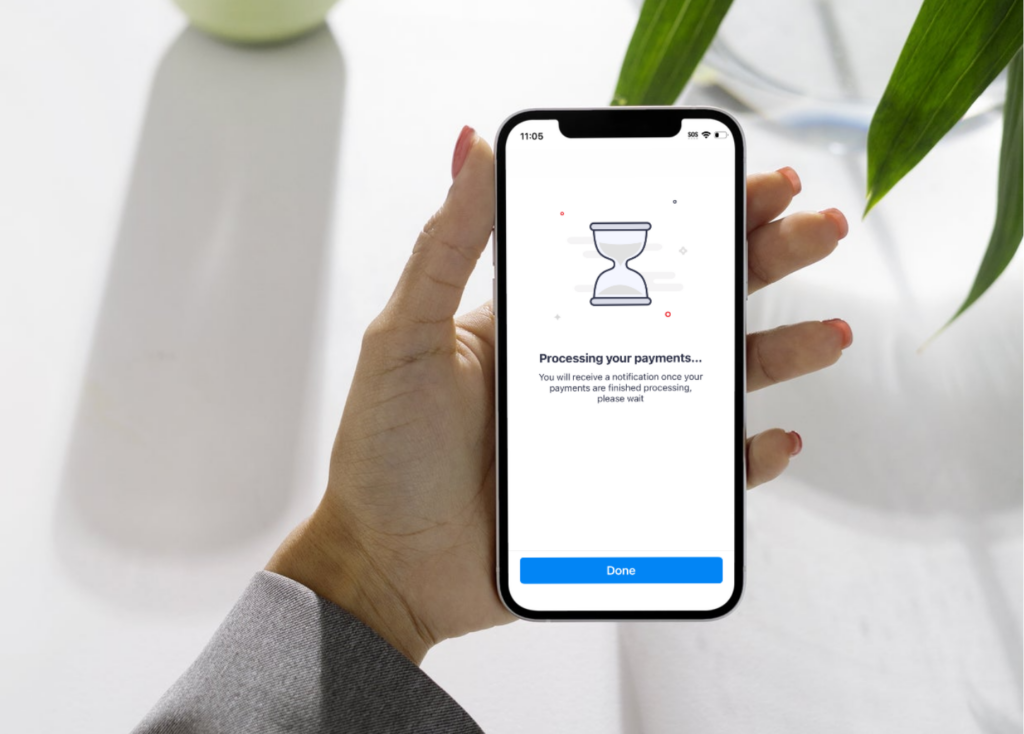
We always recommend paying your bill at least 2–3 business days before the due date to allow for standard processing times and the biller to reconcile your payment.
Here’s how it works: when you make a payment through Sniip, it’s a two-legged transaction, (1) payment into the Sniip trust account and (2) as soon as the funds land, payment on to your end biller.
The cut-off times for Sniip to receive your payment for processing the following business day are as follows:
– American Express (personal/ business): 5pm AEST
– Visa/Mastercard debit: 5pm AEST
– Visa/Mastercard credit: 5pm AEST
– Bank account: 5pm AEST for 2-business day processing (payments from a Bank Account require one additional business day processing time)
Note: Funds may take roughly 24 hours to finalise and be deposited into the biller’s account after leaving Sniip, so giving yourself that 2 -3 day buffer is the way to go.
Please note: any payments made after 5pm AEST Thursday will be processed when the funds are received on Monday (or the next business day in the case of a public holiday).
You can find a date-stamped receipt under the ‘Receipts’ tab in the Sniip app as confirmation of your payment.
4. Can I make payments with Afterpay using Sniip?
You sure can! You can use Afterpay Plus with Sniip via your digital wallet Apple Pay or Google Pay wallet.
The best part? Even if your biller doesn’t accept Afterpay Plus directly, you can still use it through Sniip.
Here’s how to pay a bill with Afterpay Plus:
– Select the bill you’d like to pay in the Sniip app
– Tap ‘Pay’, then select ‘Apple Pay’ or ‘Google Pay’
– Choose the ‘Visa/Mastercard’ option
– Tap ‘Pay with Apple Pay’ (or Google Pay)
– Select ‘Change Payment Method’ and choose your Afterpay Plus card from your wallet
– Confirm the payment – done!
This is why users love using Afterpay Plus with Sniip:
-Pay in 4 instalments (managed through Afterpay Plus)
-Can be used for rent, ATO, insurance, school fees, car rego and other places Afterpay Plus isn’t accepted directly
Please note: Afterpay Plus is a digital card available for $9.99/month through the Afterpay app. You’ll need to add it to your Apple or Google wallet before using it with Sniip.
5. Can I pay my ATO tax bill with Sniip using my credit card (and earn full points)?
Sure can Sniip is one of the easiest and most rewarding ways to pay your ATO bill.
Here’s how to pay your ATO bill with Sniip:
– Open the Sniip app and tap the blue ‘+’ button
– Enter the BPAY Biller Code and Reference Number from your ATO bill or payment advice
– Select your preferred credit card as the payment method
– Review your bill details and tap ‘Pay’
That’s it! Sniip will process your payment to the ATO via BPAY the next business day (provided it’s submitted before the 5pm AEST cut-off).
A few things worth knowing:
– You’ll earn full credit card reward points on your ATO payment
– We recommend paying your ATO bill at least 2–3 business days before the due date to allow for processing.
Got a question about paying the ATO? Give us a call on (07) 3268 7710 – we’re happy to help.