Blog Post

New Feature Alert: Refer a Friend

📢 Please Note: This promotion is no longer available, the Refer a Friend program has ended. But don’t worry. We run new offers from time to time! Stay tuned for the latest Sniip promotions.

New Feature Alert: Refer a friend

Do you like using Sniip? Do you think your friends might like using Sniip too? We’d love you to tell them about it!

Introducing our new feature… Refer a Friend!

Refer a Friend to Sniip and we’ll give you $10 off your next bill

The more bill paying friends you refer, the more money you make. Plus, your friend gets $10 off their bill too! Now that’s worth spreading the good news about! 

How to do it:

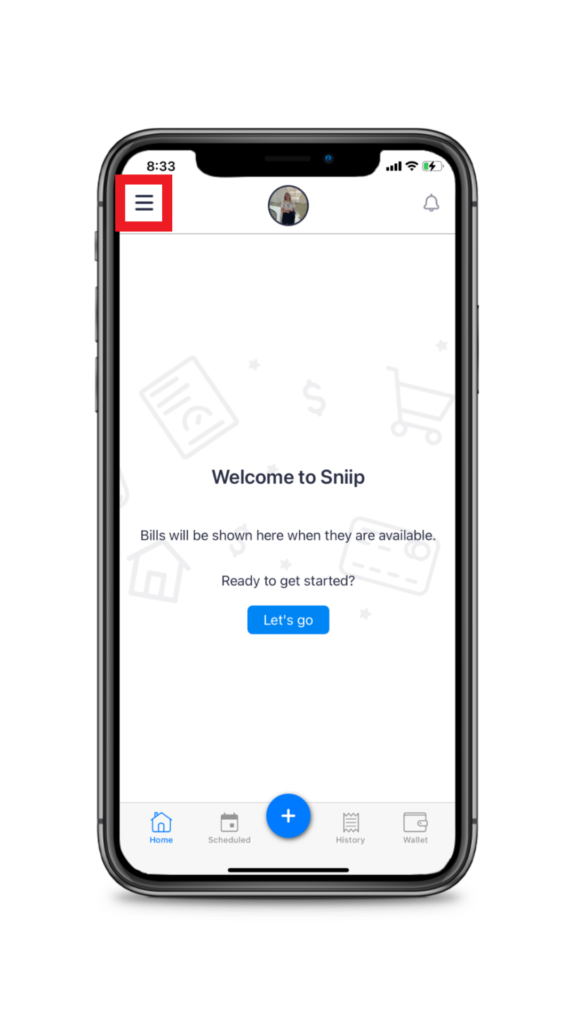
Step 1. To get referring now, simply click on the menu bar in the top left of the app. 

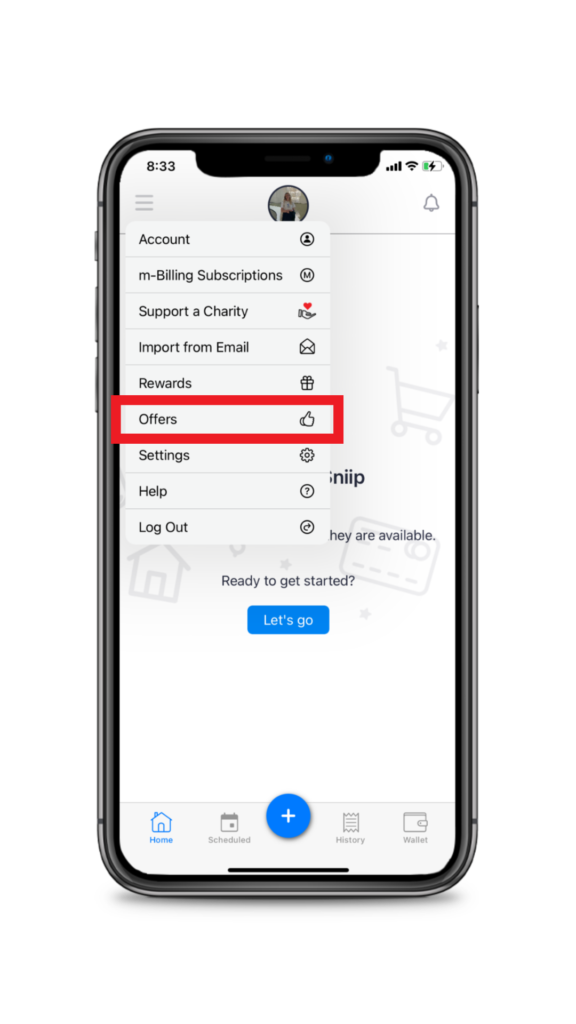
Step 2. Tap ‘Offers’ under the menu bar

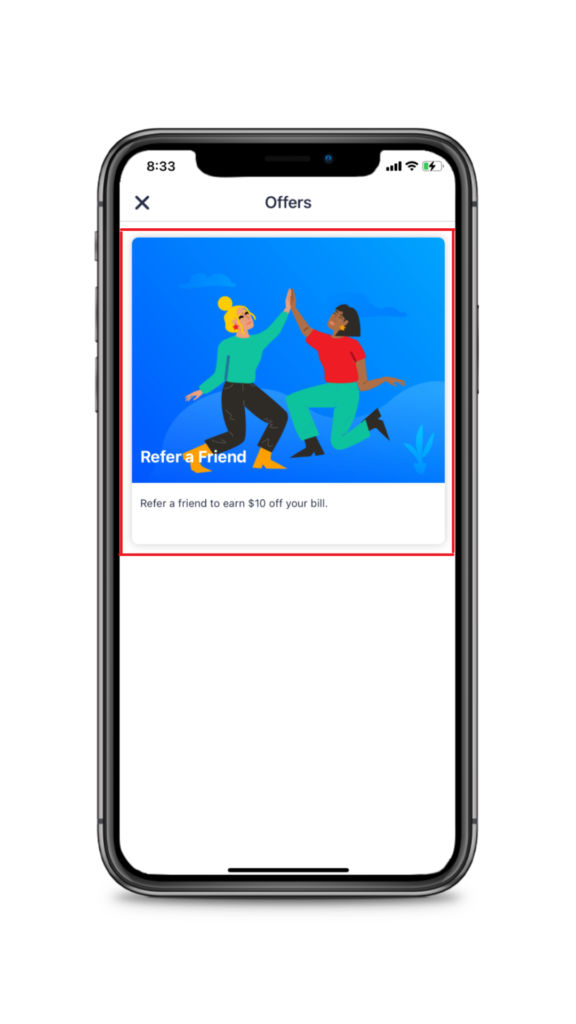
Step 3. In the Offers menu, tap the ‘Refer a Friend’ widget. 

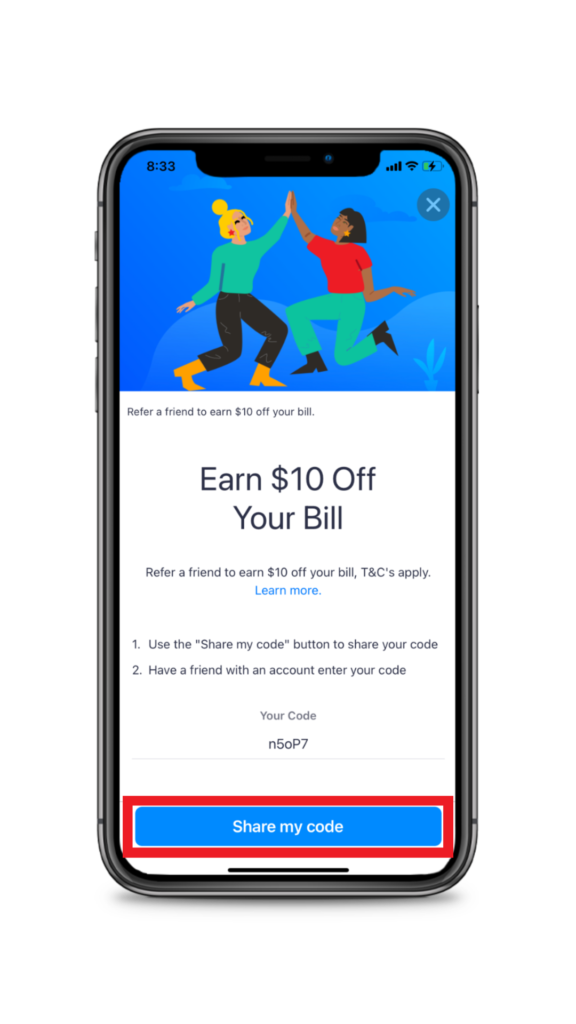
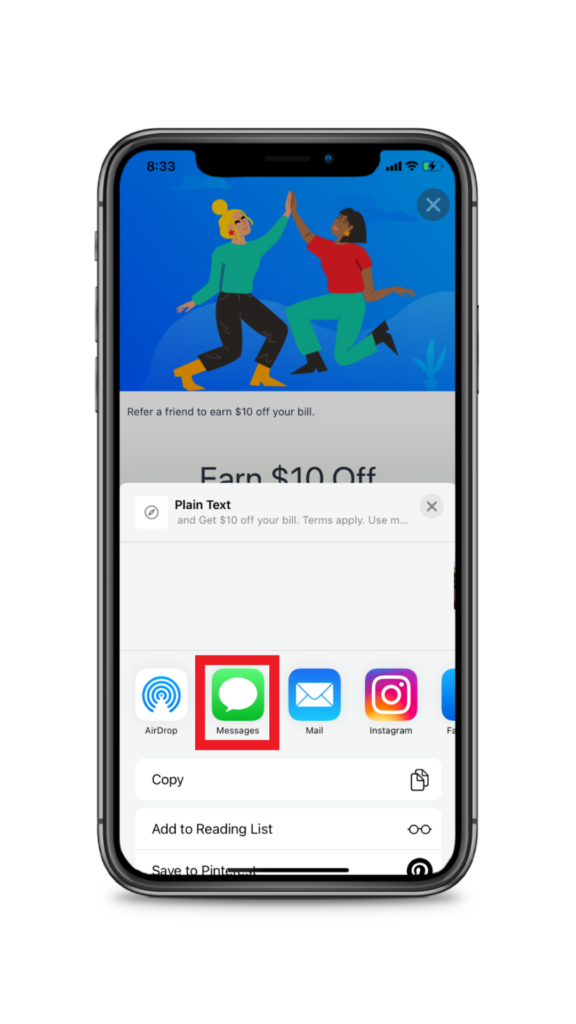
Step 4. In your ‘Refer a Friend’ tap ‘Share my code’. 

Step 5. Choose how you wish to share your unique code with your friends and start earning money off your bills today!* 


Refer to the below video to see how you redeem your rewards balance when making a bill payment!

Fast Five: Our most commonly asked questions this week July 2021

Our most frequently asked questions in July 2021

1. How will I know when the payment is received by the biller? 

The bill is paid to your biller via BPAY the same day we receive the funds (generally the next business day). 

The biller has to recognise the date of payment being the day it was paid via BPAY. 

This is shown on the confirm screen before you submit the payment and you can also see this in the History section of your Sniip app.

2. I pay my rent via BSB and account number. Can your app be used to pay that or is it BPAY only?

Unfortunately we currently don’t offer payments to BSB and account numbers. We’re currently working on a solution and we’ll keep you posted! 

3. How many points can I earn by paying ATO with my credit card? Would paying via Sniip offer a higher reward point earning?

We’re pleased to confirm you earn your full amount of loyalty points when paying with Sniip, irrespective of the card. 

4. Why can’t I pay DEFT with my AMEX via Sniip?

We are currently working on this with AMEX. It’s a regulatory issue and we believe it can be overcome.

There are lots of customers who want to pay DEFT bills and we are just as keen to allow them. 

We’ll  keep you posted on our progress but hopefully not far away now!

5. With the $10 referral offer that I received. Does it expire? I don’t have to pay bills for a little while and want to make sure I don’t miss out.

Currently we don’t have an expiration date on referral codes, but we are planning to add one in the next few months. But you will be good for at least a few months.

Fast Five: Our most commonly asked questions this week May 2021

1. Can I pay with my credit card without using Apple Pay?

You sure can! You can manually add or scan your credit/debit cards. To do this, select the “Wallet” tab at the bottom of the Sniip app, then select the small “+” icon in the top right corner of the screen. You can then add your card details.

When making a bill payment, Apple Pay is the default payment method. To select an alternate payment method, simply swipe right on the Apple Pay logo to select your preferred option.

2. Why was my Amex card charged $1 before paying a bill?

When you add a credit card to the Sniip app, we make a $1 authorisation charge to the card. This dollar will be refunded back to you as soon as possible. 

3. Will I earn points when using other credit cards that are not Amex?

Great question! You are still eligible to gain points using any credit card attached to a loyalty program. When using one of these cards, you will gain full points when using the Sniip app to pay your bills. 

4. Can I make partial payments to billers that only accept full payments?

In the Sniip app, we allow users to set-up instalment plans (using their own money) to pay off their bills. Unfortunately, certain billers require you to pay the full amount in one transaction. Examples of payments that cannot be paid in installments include, car registration, fines and licence renewal fees.

5. Why can’t I make a payment to another credit card or debt facility using a different credit card?

Unfortunately, there are restrictions in place for payments to certain billers using credit cards, as determined by BPAY and our banking partners. This includes not being able to pay credit facilities with a credit card.  If you wish to use a debit card to pay this biller, Sniip may be able to facilitate this transaction, depending on the bill you are paying.

Do you have any questions about Sniip? Call us at (07) 3268 7710 or email at customercare@sniip.com

Fast Five: Our most commonly asked questions (24/05/2021)

Our most frequently asked questions in May 2021

1. Can I pay with my credit card without using Apple Pay?

You sure can! You can manually add or scan your credit/debit cards. To do this, select the “Wallet” tab at the bottom of the Sniip app, then select the small “+” icon in the top right corner of the screen. You can then add your card details.

When making a bill payment, Apple Pay is the default payment method. To select an alternate payment method, simply swipe right on the Apple Pay logo to select your preferred option.

2. Why was my Amex card charged $1 before paying a bill?

When you add a credit card to the Sniip app, we make a $1 authorisation charge to the card. This dollar will be refunded back to you as soon as possible. 

3. Will I earn points when using other credit cards that are not Amex?

Great question! You are still eligible to gain points using any credit card attached to a loyalty program. When using one of these cards, you will gain full points when using the Sniip app to pay your bills. 

4. Can I make partial payments to billers that only accept full payments?

In the Sniip app, we allow users to set-up instalment plans (using their own money) to pay off their bills. Unfortunately, certain billers require you to pay the full amount in one transaction. Examples of payments that cannot be paid in installments include, car registration, fines and licence renewal fees.

5. Why can’t I make a payment to another credit card or debt facility using a different credit card?

Unfortunately, there are restrictions in place for payments to certain billers using credit cards, as determined by BPAY and our banking partners. This includes not being able to pay credit facilities with a credit card.  If you wish to use a debit card to pay this biller, Sniip may be able to facilitate this transaction, depending on the bill you are paying.. 

Do you have any questions about Sniip? Call us at (07) 3268 7710 or email at customercare@sniip.com

Fast Five: Our most commonly asked questions this week April 27

Our most frequently asked questions in April 2021

1. My BPAY Biller Code isn’t accepted, what can I do?

Great question! If you’re the first person to make payment to a specific biller in the Sniip app, you’ll receive a pop-up that says “Biller is not available”. 

Please contact us via customercare@sniip.com or call (07) 3268 7710. We will review the bill you’re attempting to pay and where possible, add the biller to our system. 

Sniip has restrictions on some billers. These include: 

  • Remittance service provider
  • Charities & non-for-profits 
  • Intermediaries
  • Payday lenders
  • Internet gambling
  • Casinos
  • Goods dealers
  • Foreign exchange currencies
  • Securities and derivatives
  • Managed investment schemes
  • International business operations
  • International students or travel products
  • Hiring and leasing
  • Banking and financial institutions

If you believe you should be able to pay any of these billers, please contact Sniip and we will evaluate your biller on a case by case basis. 

2. Can I pay a bill with BSB and account number?

Yes! On April1, 2022 we allowed you to connect your bank account to the Sniip app with a BSB and account number. This means you can pay a bill with a BSB and account number. Please note that you must successfully verify your Sniip account to be able to make payments from your bank account in the Sniip app.

There is no processing fee for paying a bill with BSB and account number, it is completely FREE. 

3. What’s the cost to use the Sniip app?

Sniip is a free app that allows customers too easily make bill payments from their phones or tablets!. There are no subscription fees, service fees or other hidden costs.

Debit cards are completely free to use in the app. Visa, Mastercard and Amex credit cards incur a 1.5% (incl GST) processing fee, however you receive full points on your bills (including the ATO). This is the lowest possible surcharge you can pay when making a bill payment using a credit card.

4. Can I set up a recurring payment for my bills?

Absolutely! To create a recurring payment, follow these simple steps: 

1. Import your bill to the Sniip app using your chosen import method 

2. Tap on the bill you’d like to pay from the home menu

3. Tap ‘schedule’ from the bottom right of the screen

4. Select ‘create recurring payment’ 

5. Choose the amount you’d like to pay and the frequency you’d like to pay it. Then choose the end date, or select no end date. Done!

5. How do instalments work? Is it Buy Now, Pay Later?

Sniip provides users with the flexibility to pay their bills in instalments before the bill is due. Currently, we do not offer a ‘Buy Now, Pay Later’ option in the Sniip app. 

To create an instalment payment, follow these simple steps: 

  1. Import your bill to the Sniip app using your preferred import method 
  2. Tap on the bill you wish to pay and select “Schedule”
  3. Select “Create Instalment Plan”
  4. Input the bill due date and the number of instalments you wish to pay.
  5. An instalment schedule will be populated for you to ensure you’ve got the right amount of money to pay your bill when it’s due. 

Please note: To allow for adequate processing time and ensure your bill is paid on time, the money will be debited from your account three days before the bill due date. 

If you have any questions, please email customercare@sniip.com or call (07) 3268 7710. 

New Feature Alert: Recurring Payments are here!

New Feature Alert: Recurring payments

You asked, we answered! 

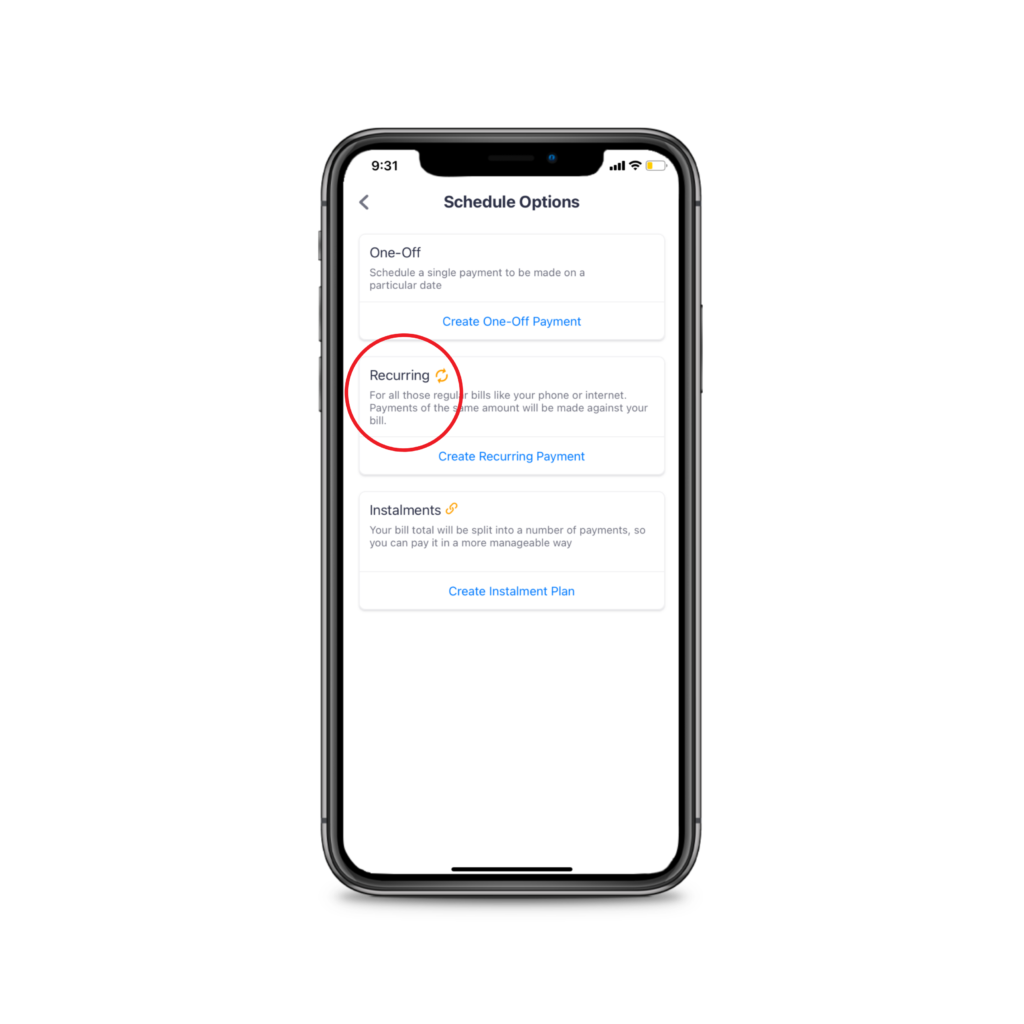
In the Sniip app, you can now set and forget all the recurring payments/subscriptions in your life. We’re talking rent, phone bills, internet, gym subscriptions, health insurance, lessons and tutoring, you name it! If it’s got a BPAY Biller Code, you can make it a recurring payment with Sniip.

With Sniip’s recurring payments feature you take back control! Gone are the days of handing over your bank account to the mercy of a merchant and jumping through endless hoops to have them halted/ cancelled. 

Here’s how it works: 


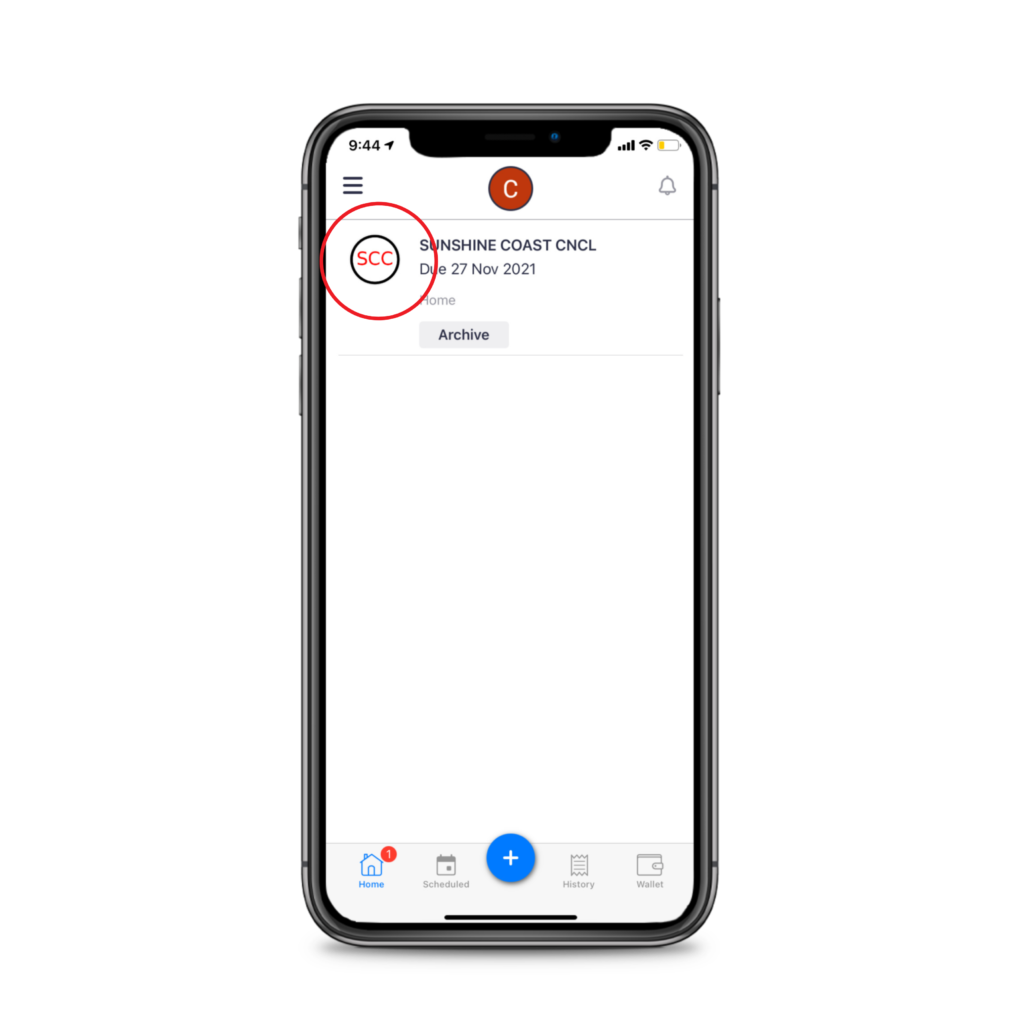
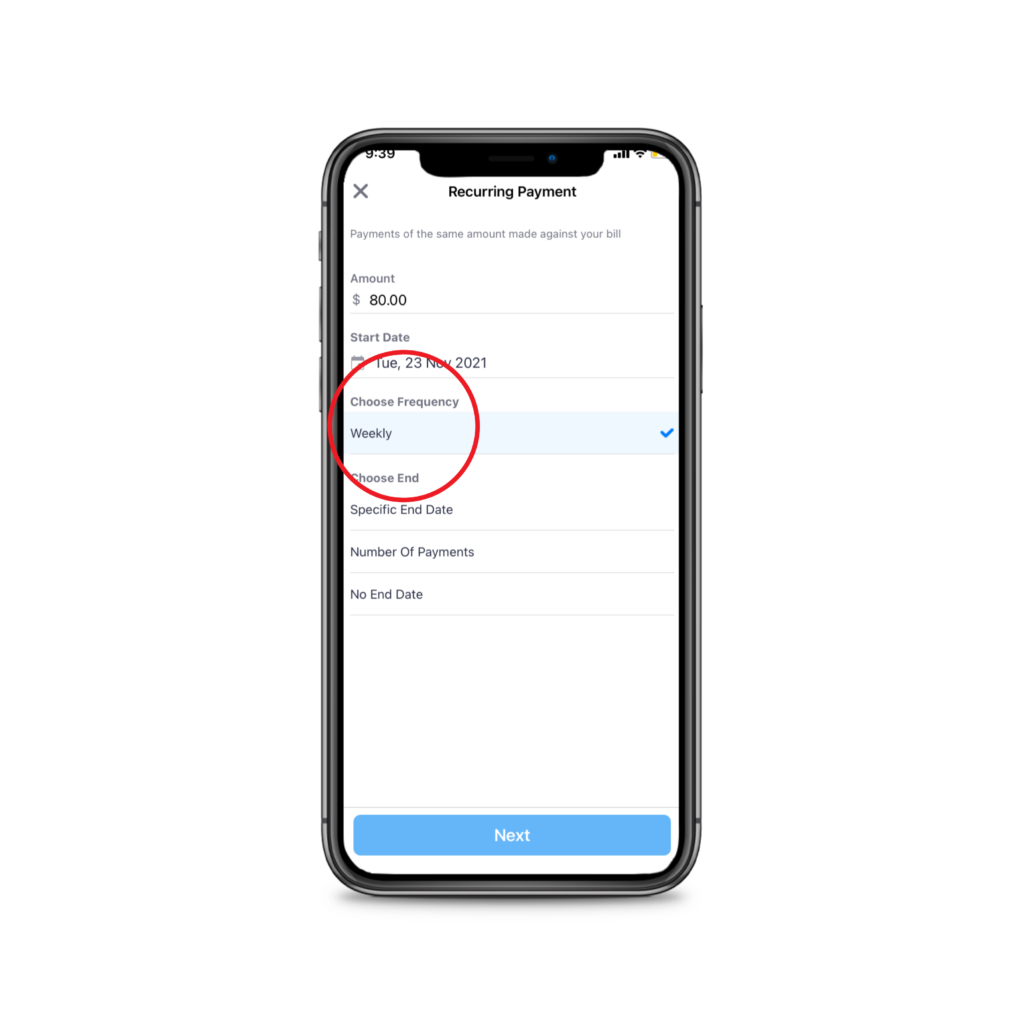
Tap on the bill you’d like to pay from the home screen, (or add your bill to the Sniip app by scanning, manually importing or auto importing). 

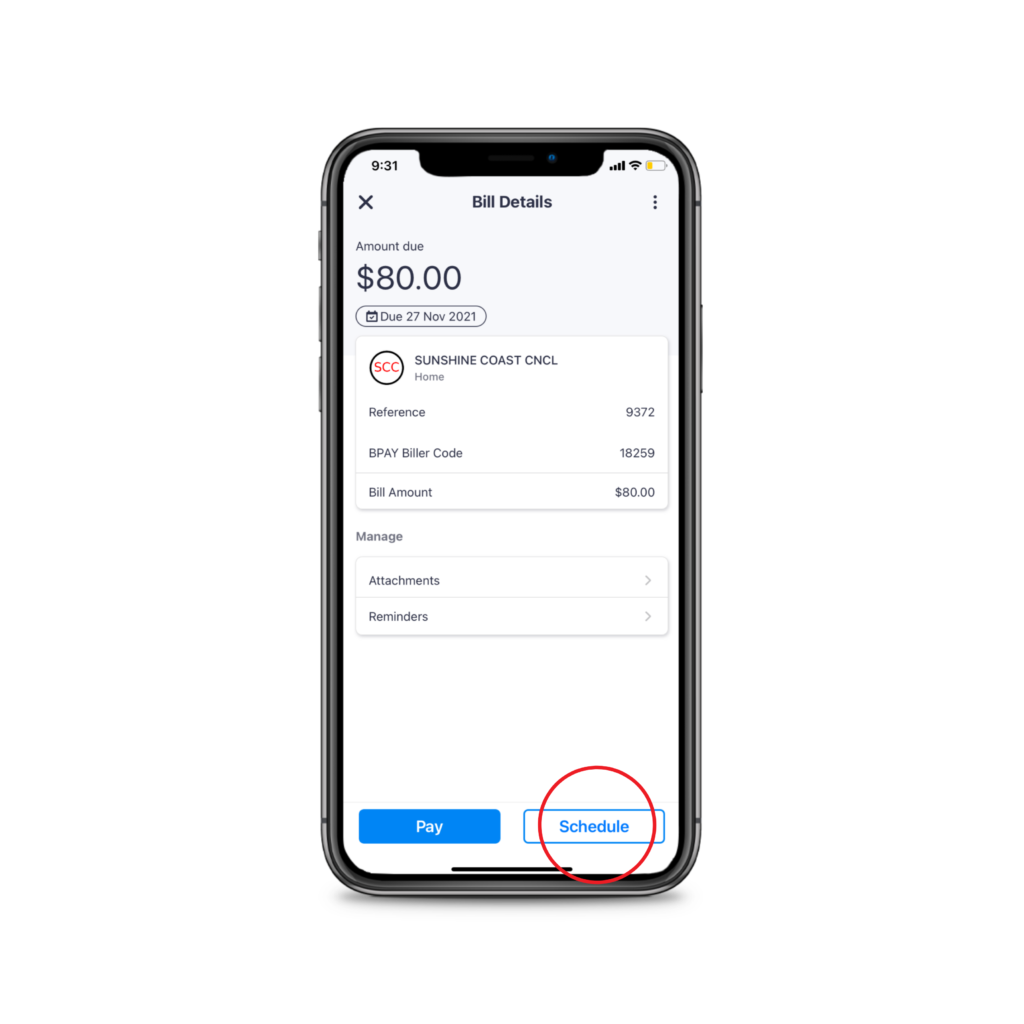
Tap ‘Schedule’ from the bottom right of the screen.

Tap ‘Schedule’ from the bottom right of the screen.

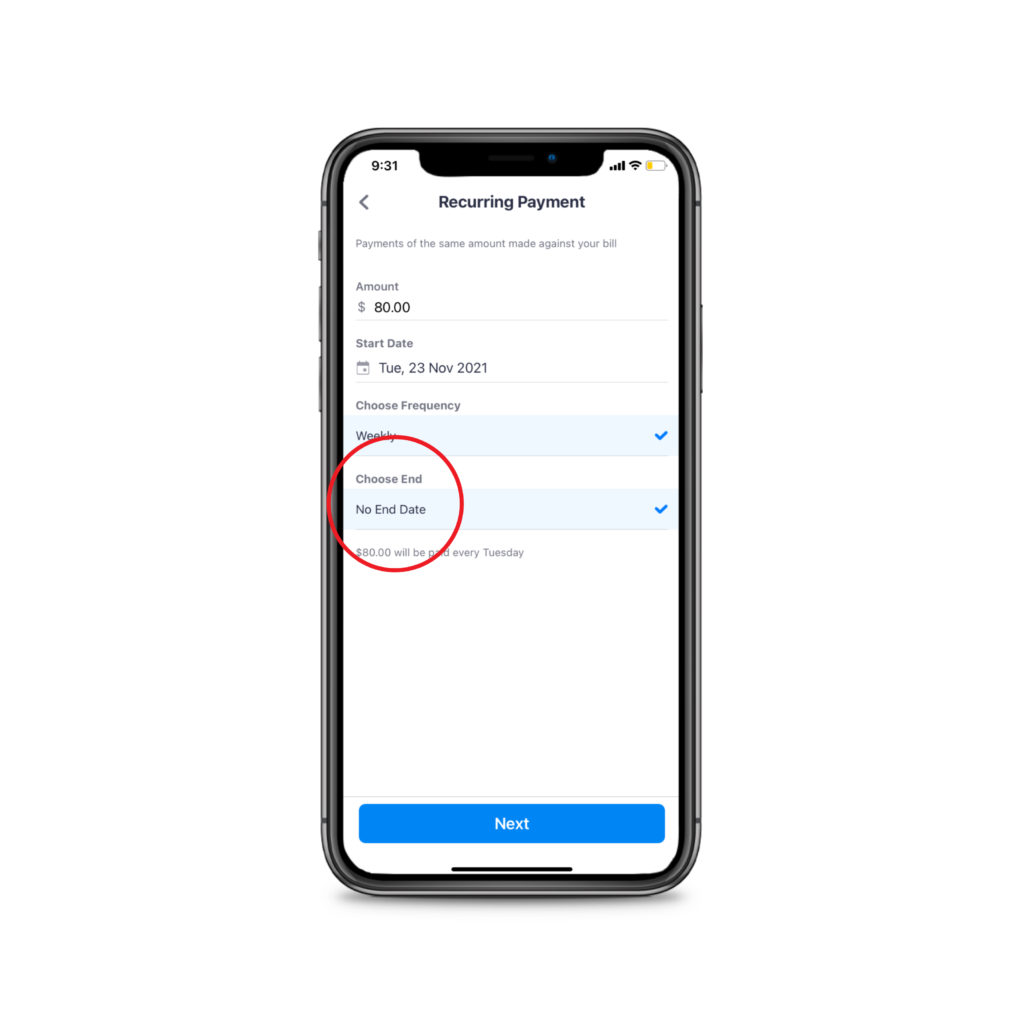
Choose the amount you’d like to pay and how often you would like the payments to be made (weekly, fortnightly).

Choose the end date, or select no end date. 

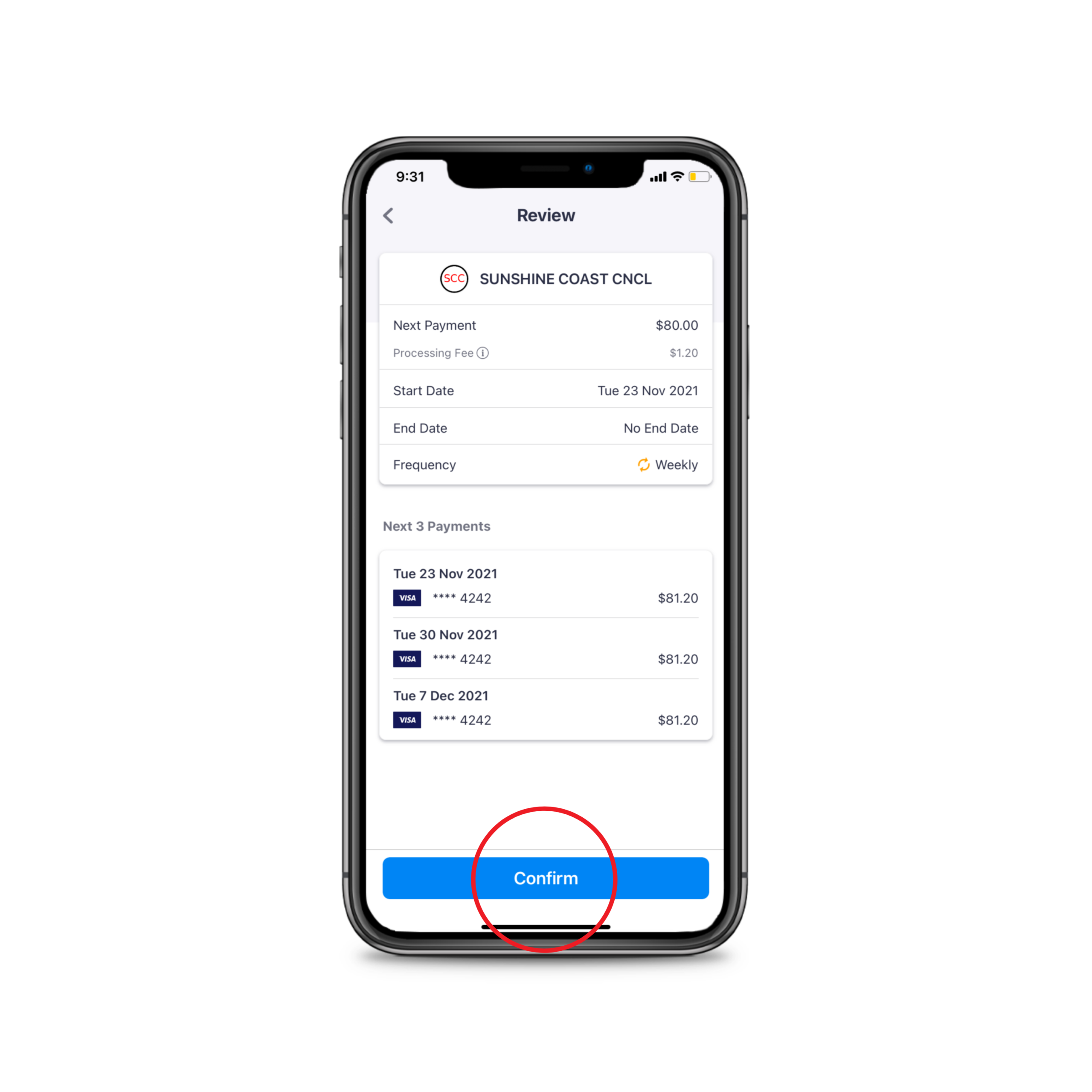
Click confirm. 

Done!

New Feature Alert: Nicknames and Enables

New Feature Alert: Nicknames and reminders

Everybody hold on, we’re back today with two new features! We have introduced bill nicknames and enables to keep making your bill payments easy!

1. Bill nicknames for emails 

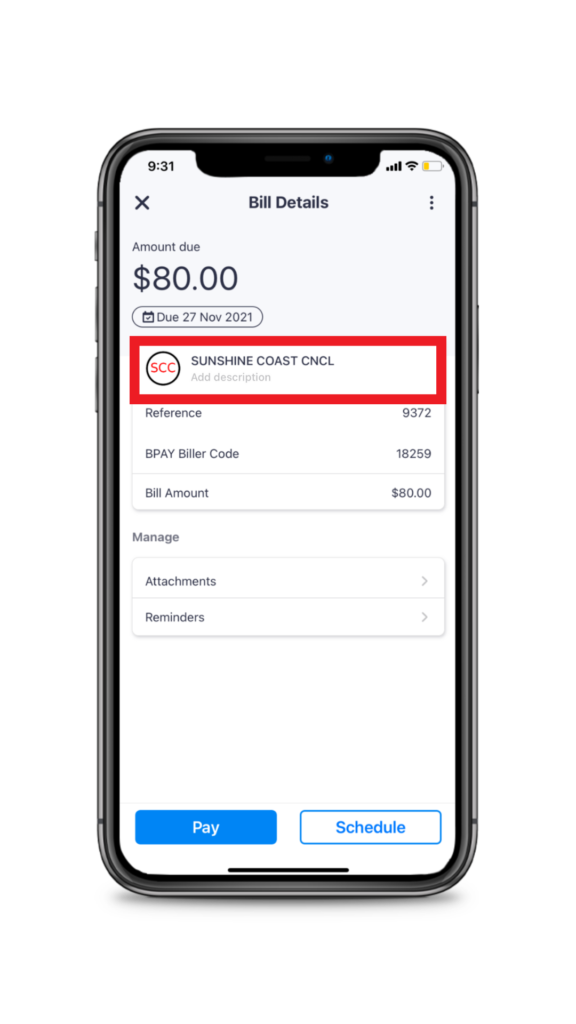
Gone are the days of searching the reference number to work out which bill is which. You can now distinguish bills from the same biller by adding a biller nickname.

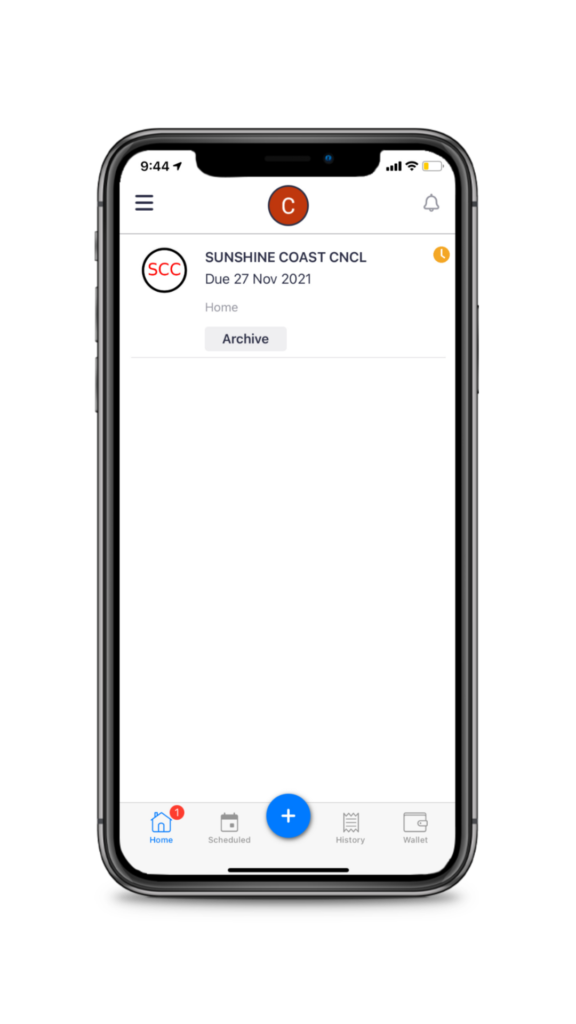
Simply add the bill to the Sniip app, and tap on the biller name for example, ‘Sunshine Coast Council’.

Next, add your bill description, for example, ‘My house’ or, ‘1 Example St, Brisbane’. 

Now, you’ll see a handy nickname below the biller name to differentiate which bill is which when we email you reminders, schedule payment confirmations, receipts, etc. 

You’ll see the nickname in the subject line so it’s all easy breezy to navigate. 

2. New biller alerts

Ever added a bill to the Sniip app that wasn’t enabled? No worries! From time-to-time we’ll need to enable payment for certain billers.

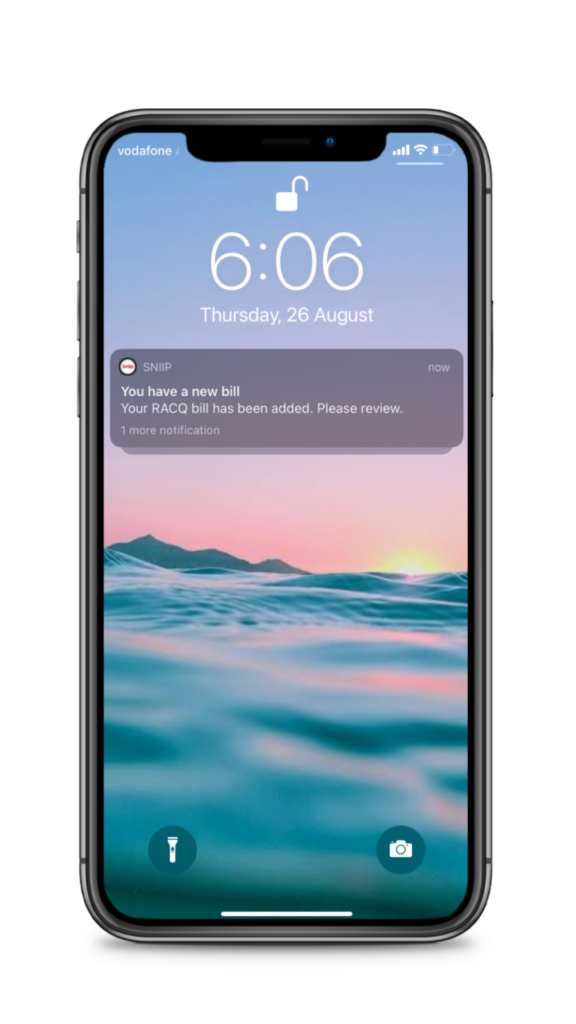
You’ll now receive one simple push notification and email to let you know when your biller is enabled. You can then pop into the Sniip app and pay your now bill with ease. Simple!


If there’s a feature you’d like to see in the Sniip app? No worries! Let us know at customercare@sniip.com, we’d love to hear from you. 

Six tips for a financially savvy Easter

Six tips for a financially savvy Easter

1. Make a checklist

Let’s be honest, the cost of buying Easter eggs can add up quickly. 

Then, add into the mix the fact that the entire event often creeps up on even the best of us. Next minute, it’s 9pm the night before and you’re at the fuel station paying $20 for the Easter dregs that will be 80% off tomorrow. We feel you friend, we feel you! 

That’s why we’re going to suggest making a list and checking it twice (even though it’s Easter and not Christmas!). Write out everyone you need to buy for and what you’re going to buy them. Then, carve out the time in your diary to hit up the shops quickly and cross it off the list – here’s a handy printable checklist from Mrs Organised. That way you (hopefully) won’t get caught out and miss anyone! 

2. Consider Easter egg alternatives 

3. Low-cost ideas to entertain the kids this long weekend 

From foam cups to jelly beans, pasta and rocks – we’ve all got one of the items on this list and that’s a quick, cheap craft activity sorted for the kids (or your inner-child) this Easter. 

  1. Jelly bean Easter necklaces
  2. Toilet paper roll bunny
  3. Foam cup bunnies
  4. Pasta Easter eggs
  5. Easy Easter rocks 

4. Set the ‘Out of Office’ and put your bills on autopilot 

Unless you’re working over the Easter break, you’ll likely be turning on the Out of Office and checking out from more than your email responsibilities. 

Can we suggest grabbing that pile of bills on your countertop/fridge now, scanning them all into the Sniip app (or importing them from your email). You can quickly and easily schedule, create an instalment plan or set yourself a reminder to pay the bill later

That way, you’ll encounter no nasty surprises or overdue bills when you check back into reality post Easter. 

5. Secure your home 

On the note of bills, that home and contents insurance coverage isn’t going to get you much mileage if you don’t secure your home. 

Opportunistic thieves love a long weekend as much as we do. A quick double-check of the doors and windows before you head away for the long weekend might save you a lot more money than your time cost you to check this Easter.

Even if you’re in the backyard, you might just quickly double back and lock the front door. Or maybe it’s that you ensure your car keys aren’t securely stored in your car’s ignition. You know, all that good stuff!

6. Organise your Easter get-together for the week later 

We couldn’t wrap this up without including this super-savvy Easter savings tip for you. 

Much like Christmas, all things Easter will be less than half the price in the days that follow the event. If it’s a family/ friends gathering and you know you’ll be doing an Easter exchange, see if you can’t move it to the week following Easter. 

The chocolates will be cheaper, the parks, restaurants, cafes and accommodation less busy and the memories and time spent together will likely be just as meaningful. 

Happy Easter from the team here at Sniip! 


New Feature Alert: Auto-bill Import

New Feature Alert: Auto Bill Import

Well, guess what!

We’re back again with another fantastic feature for you in the Sniip app! Make your life easier with auto-bill import

That’s right, if you have any email account with Gmail or Microsoft, you can now all have your bills that offer BPAY automatically imported into the Sniip app ready for payment. 

Here’s how you do it:


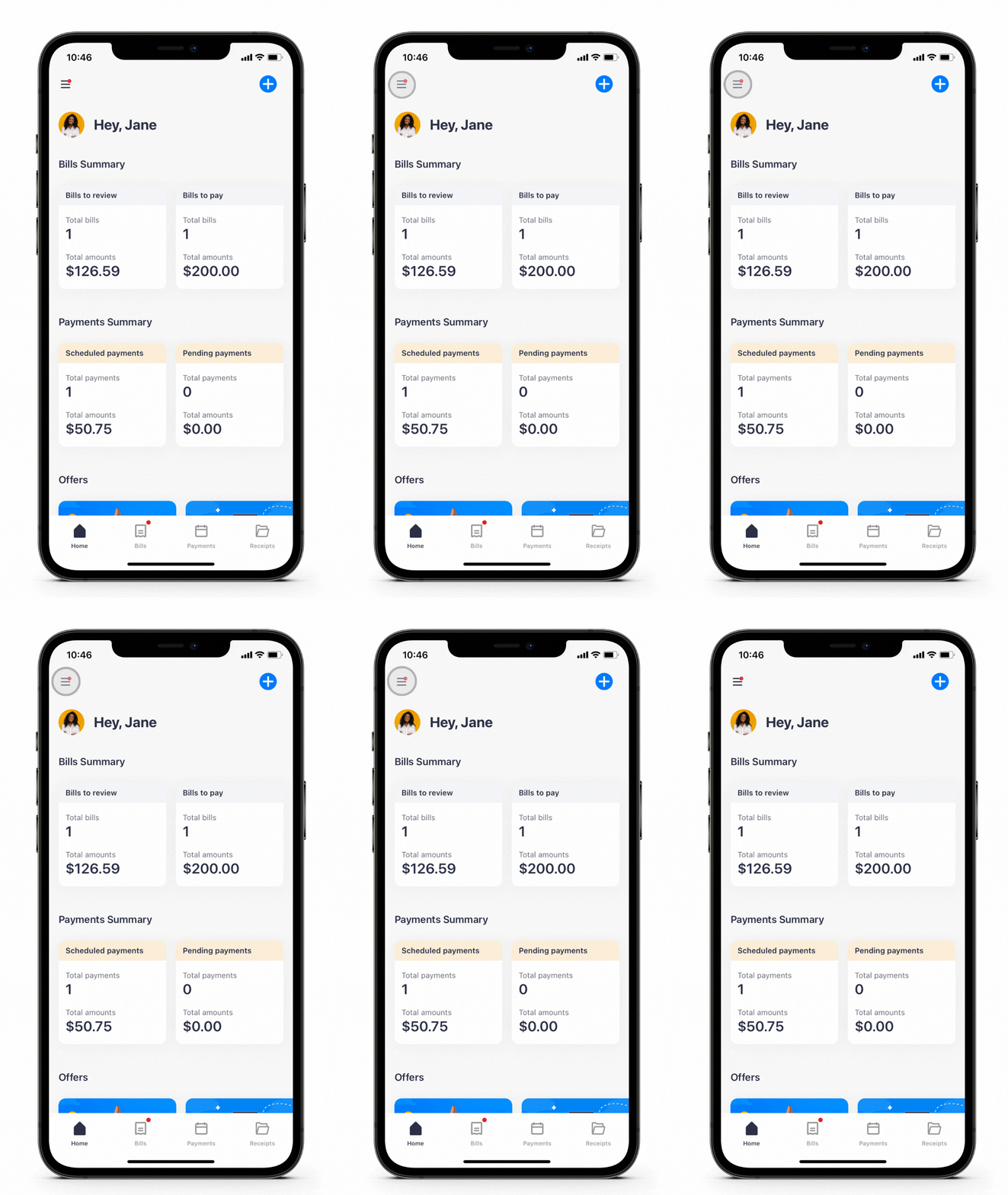
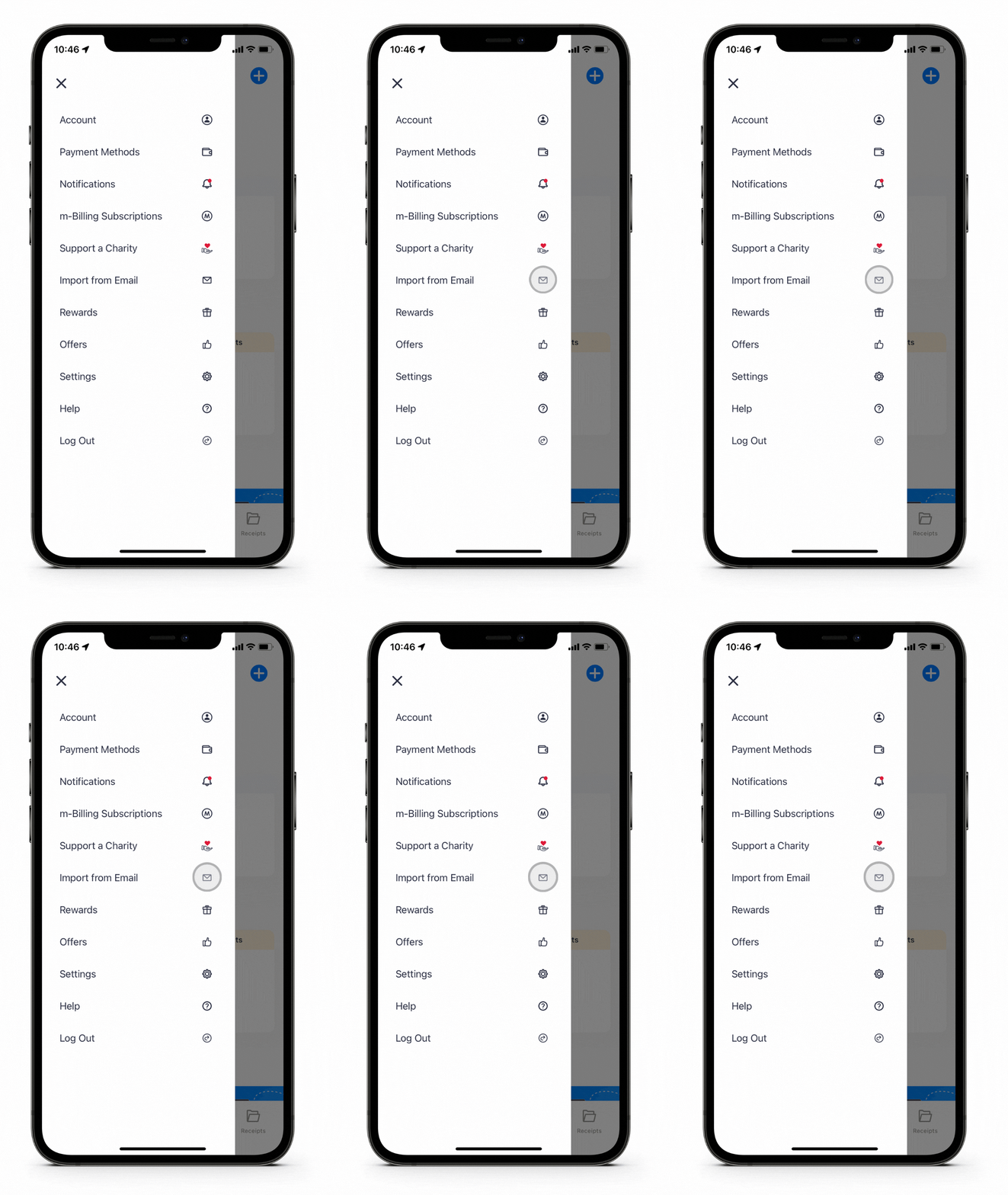
Open the Sniip app and tap the menu bar on the top left of the screen. 

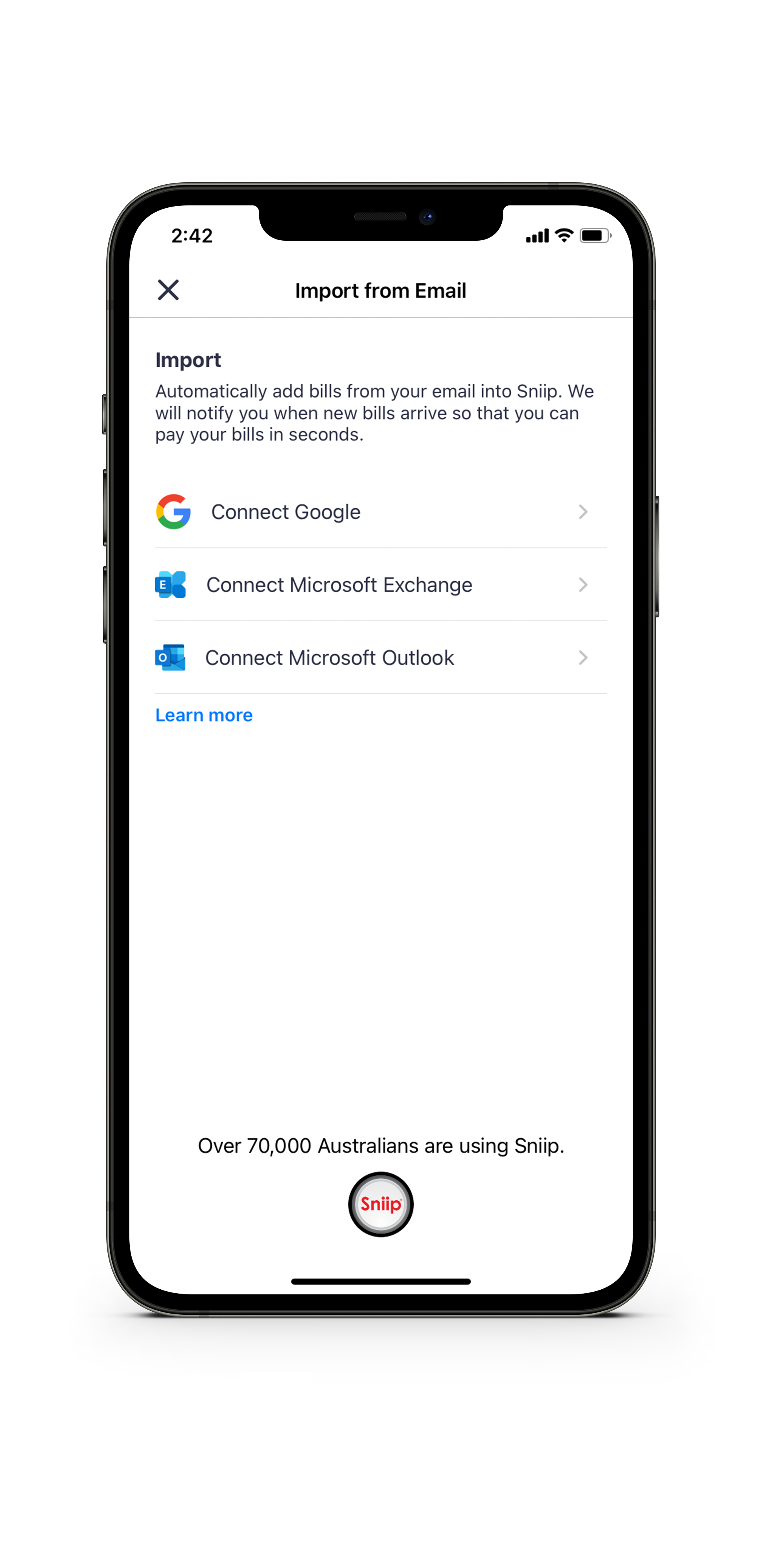
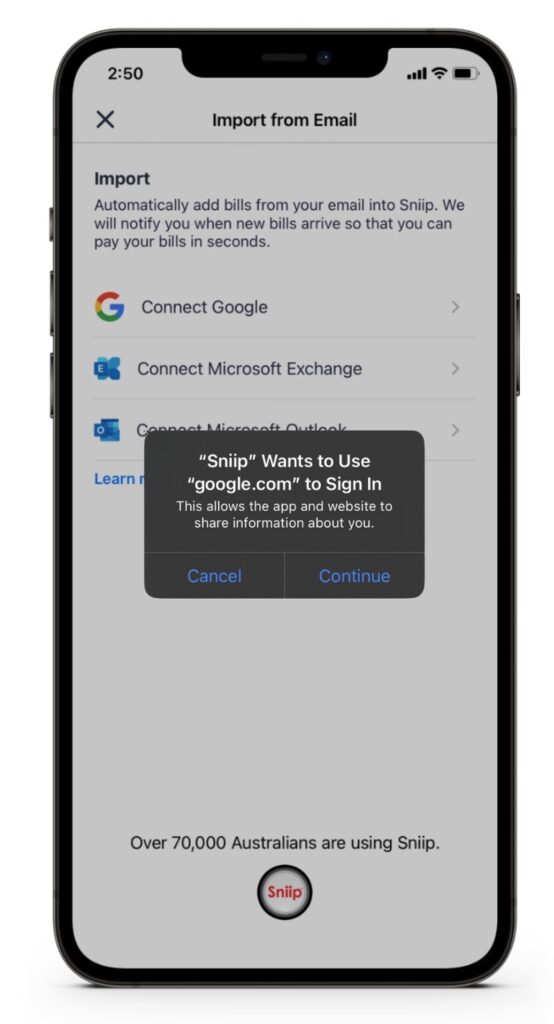
Select ‘Import from email’ and tap ‘Connect Google’, ‘Connect Microsoft Exchange’ or ‘Connect Microsoft Outlook’. 

Enter the email address you’d like your bills imported from and authorise.

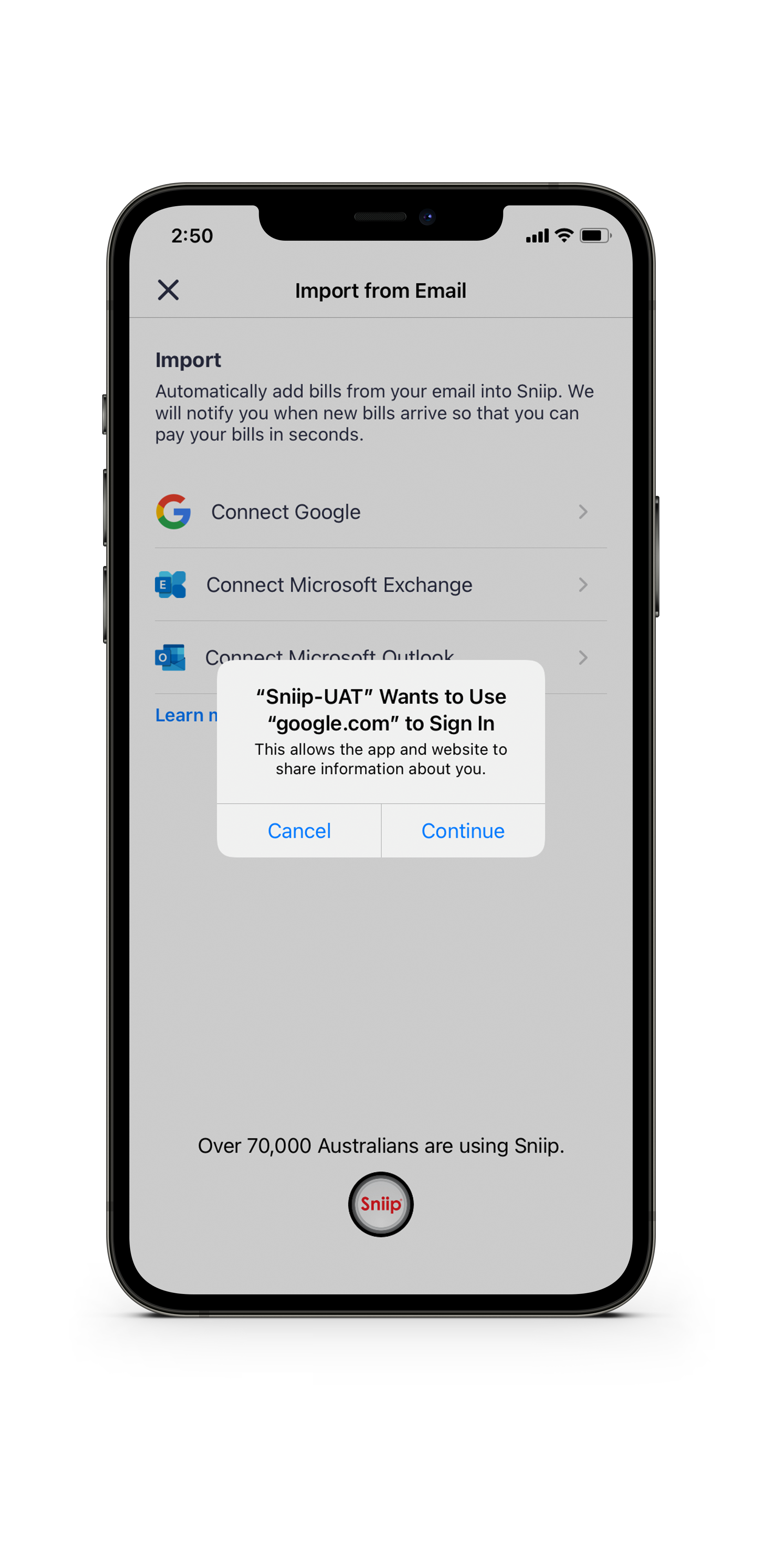
Click ‘continue’ when prompted and follow the prompts to connect your email address. 

You’re done! You’ll receive a ‘push’ notification on your mobile when your bill lands in the Sniip app and is ready for payment.   

TOP TIP: This feature is currently only available for Gmail and Microsoft accounts (with more accounts coming soon). If you use a work or business account and have a custom email domain, ask your technical team if it’s hosted by Gmail. If the answer is yes, you’ll be able to use the feature! 

If you have any questions at all, email our friendly team at customercare@sniip.com or call (07) 3268 7710. We’re here for you! 

Click here for all the supported Microsoft accounts for email auto-import.

Five ways to add your bills to the Sniip app

How To Add Bills To Sniip

We’re getting questions coming through asking about the different ways you can add your bills to the Sniip app. 

We thought we’d share them with you here today. 

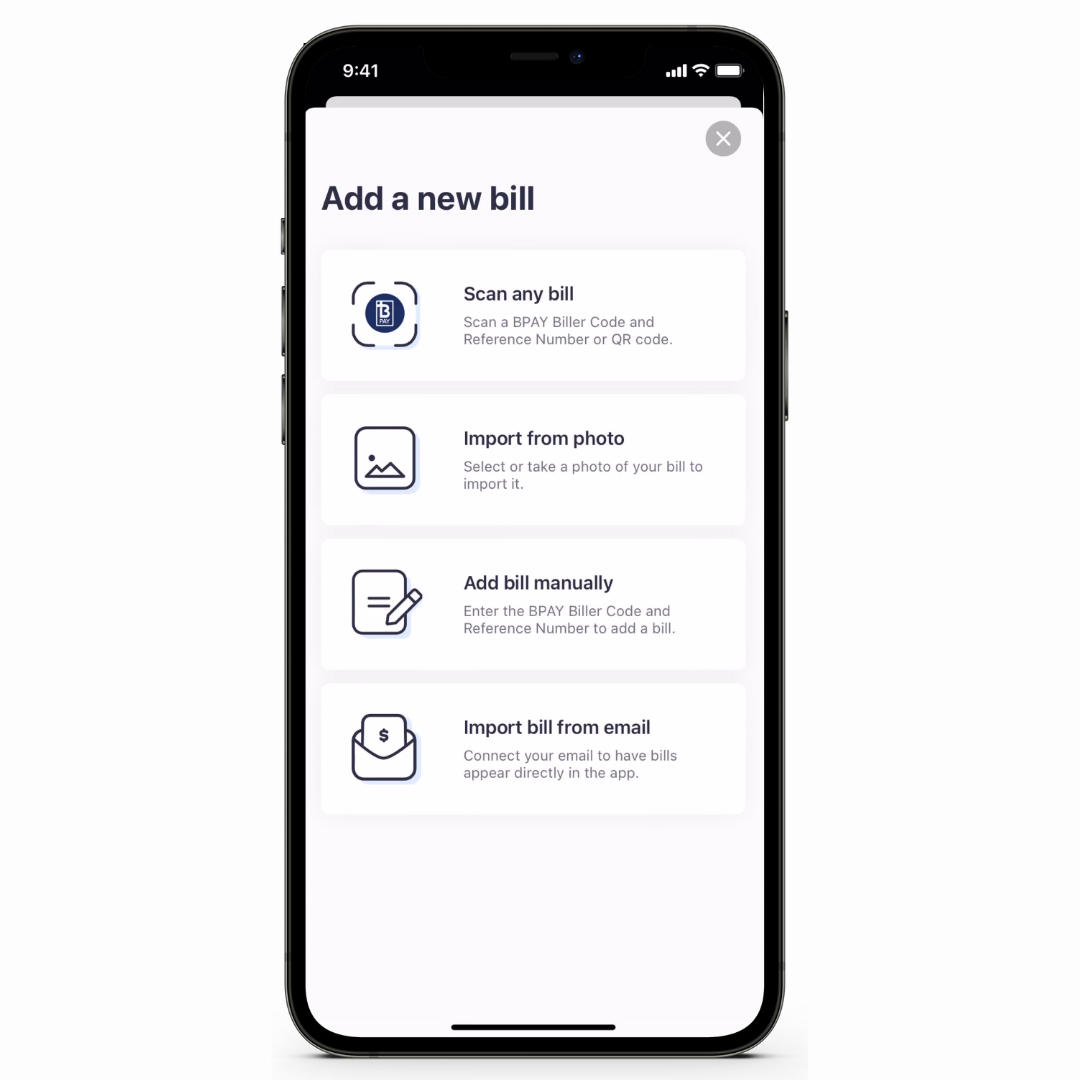
Fun fact! There are five ways you can add your bills to the app:   

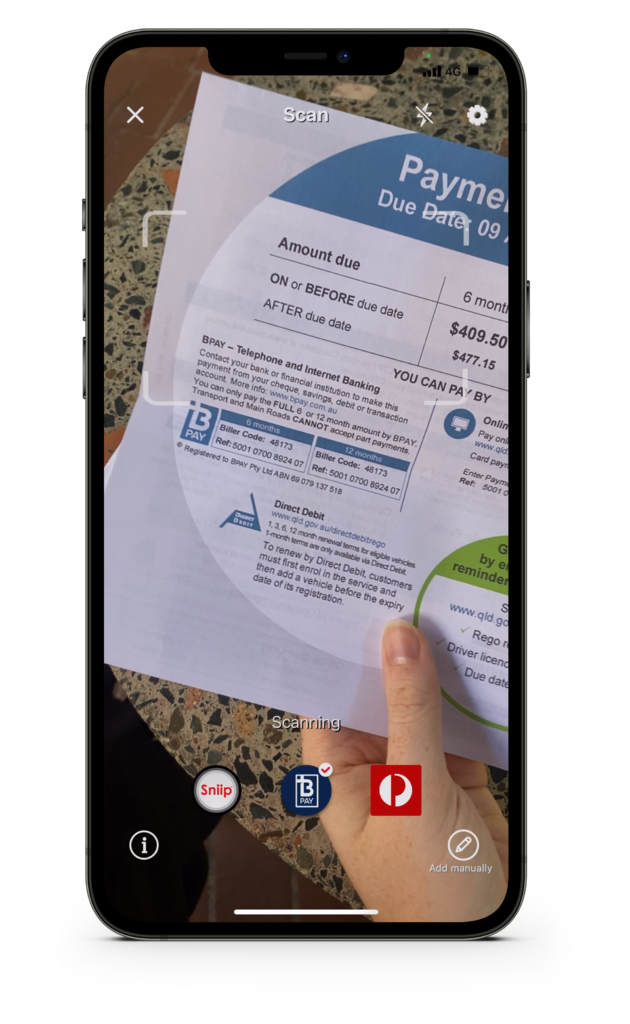
1. Scan a bill

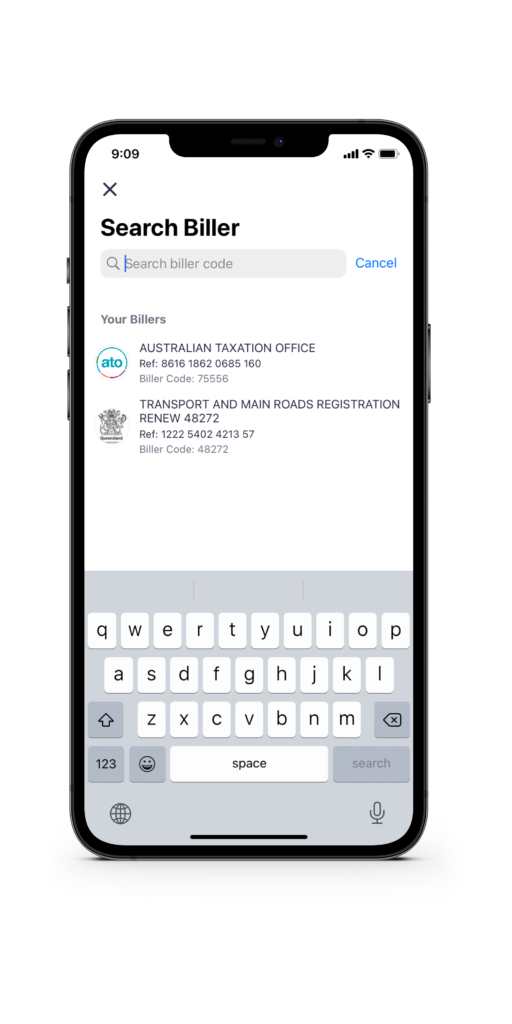
2. Manually add a bill

3. Import a bill from email 

4. Sign-up for auto email import

5. Upload bill from camera roll 

1.Scan a bill


Open the Sniip app, tap the ‘+’ icon.

Select ‘Scan’.

However your phone camera over the BPAY Biller Code or Sniip QR code on your bill.

Your bill will be automatically added to the Sniip app.

Done! 

2. Manually add a bill 

Open the Sniip app, tap the ‘+’ icon.

Select ‘Manually add’.

Locate the BPAY Biller Code on your bill and enter the number into the ‘Search Biller

Select the Biller, enter the amount to pay and the due date.

Done! 

3. Import a bill from email 

Open your emails on your mobile device. 

Locate the email containing the bill you want to import. 

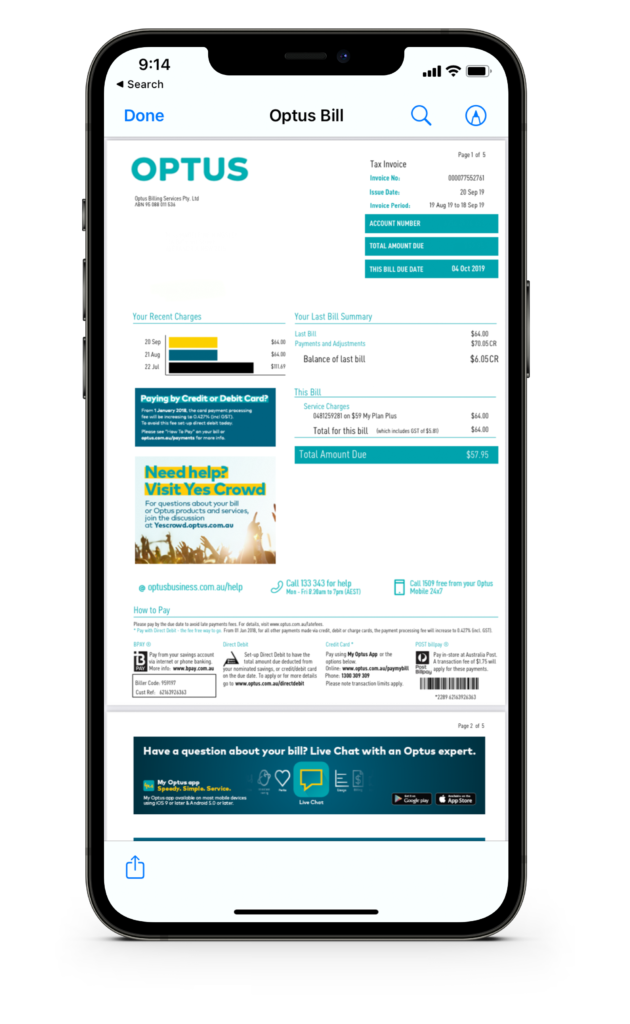
Open the PDF attached to the email.

Select the ‘share’ or ‘copy to’ icon, scroll to the Sniip icon and tap.

Select ‘Upload bill’.

You’ll receive a push notification when your bill is added to the Sniip app. 

Done! 

4. Sign-up for auto email import*

Open the Sniip app, tap the menu bar on the top left corner.

Select ‘Import from Email’.

Select ‘Connect Google’ and then ‘Continue’.

Choose the email account you want to connect.

Select ‘allow’.

Done! Your emails containing a BPAY Biller Code will be automatically added to the Sniip app ready for payment. You’ll receive a push notification when your bill is ready for payment. 

*Please note: This feature is only available for select Gmail and Microsoft accounts. 

5. Import a bill from photo gallery


Open the Sniip app and tap ‘+’ where you would normally add a bill.

Select ‘Import bill from photos’ from the menu.

Choose whether you want to take a photo of your bill or select one from your camera roll. 

Click import and we’ll do the rest!

Please allow a few seconds for our system to read your bill. We’ll copy all the important information on your bill and send you a notification when it is ready to be reviewed and added to your ‘To Pay’ tab in the ‘Bills’ section.