feature alert

Financially Savvy Easter
Financially Savvy Easter? Here's how!

Financially Savvy Easter? Here's How?

Explore our: Top 5 tips for a Financially Savvy Easter

It’s the holiday that always seems to roll around just as we start to get a handle on the New Year. And even though Easter eggs have been on the shelves since December (sighs), it’s still somehow always a surprise when the holiday is suddenly upon us!

But not to worry! We’re here to help you avoid financial shock this holiday season with our top tips for a Financially Savvy Easter. 

1. Let’s get crafty

Instead of spending money on Easter decorations or craft activities for the kids, why not make them yourself!? Get the kids (or the kids at heart) involved in making a DIY Easter Egg basket, bunny foam cups, Easter garland, dip-dyed easter eggs, popsicle chickens or potato stamps. It’s a good way to keep everyone busy from the “I’m bored” school holidays one liners, too. 

2. Plan a Potluck

Whether it’s with family, friends or colleagues, a potluck is a cost effective way to bring everyone together without the financial burden of completely hosting. What’s a potluck? Basically, it’s when someone says, ‘can you bring a dish?’ to any event you attend and you bring something homemade (or from the store). Plus, you can always add in some healthy competition of ‘best dish’ to keep things interesting. 

We quizzed Sniip HQ and here’s some of our teams favourites to whip up for a gathering:

3. Explore Nature

We are lucky to live in such a beautiful country, and exploring nature is a great way to get the family out of the house – without breaking the budget. Going on a day walk and packing a picnic is a wallet friendly, energy burning day out for everyone and a great way to spend some quality time and make memories with your loved ones. 

Here’s some walks you might like to explore in your around city: 

4. Keep it Simple!

Easter eggs are objectively the best form of chocolate. There’s nothing better than unwrapping a little chocolate treat (or ten) in the shape of an egg. 

But buying individual Easter eggs can add up quickly, try not to get caught up at the shops in buying non-chocolate presents for your gift list (or yourself too). 

There’s nothing wrong with sticking to the humble yet delicious Easter egg. If dietaries are of concern, to play it safe, you could opt to gift cute tea or a nice book. Or, writing a card to show your appreciation for that special person in your life is a lovely gesture. 

We (and our waistlines) know the amount of chocolate in circulation around Easter. There’s no need for extravagant presents. Try to keep it small, considered and personal – that’s meaningful! 

5. Scan, schedule and sign-up for seamless bill delivery

You finally get over Christmas, then realise it’s almost Easter and suddenly there’s more gifts to buy and potential holidays to be had. We feel you! 

It’s a busy time and sometimes things can get missed or overlooked, don’t let your bills be one of them. Check out our top 2 favourite ways to keep on top of your bills this Easter! 

Scan and schedule 

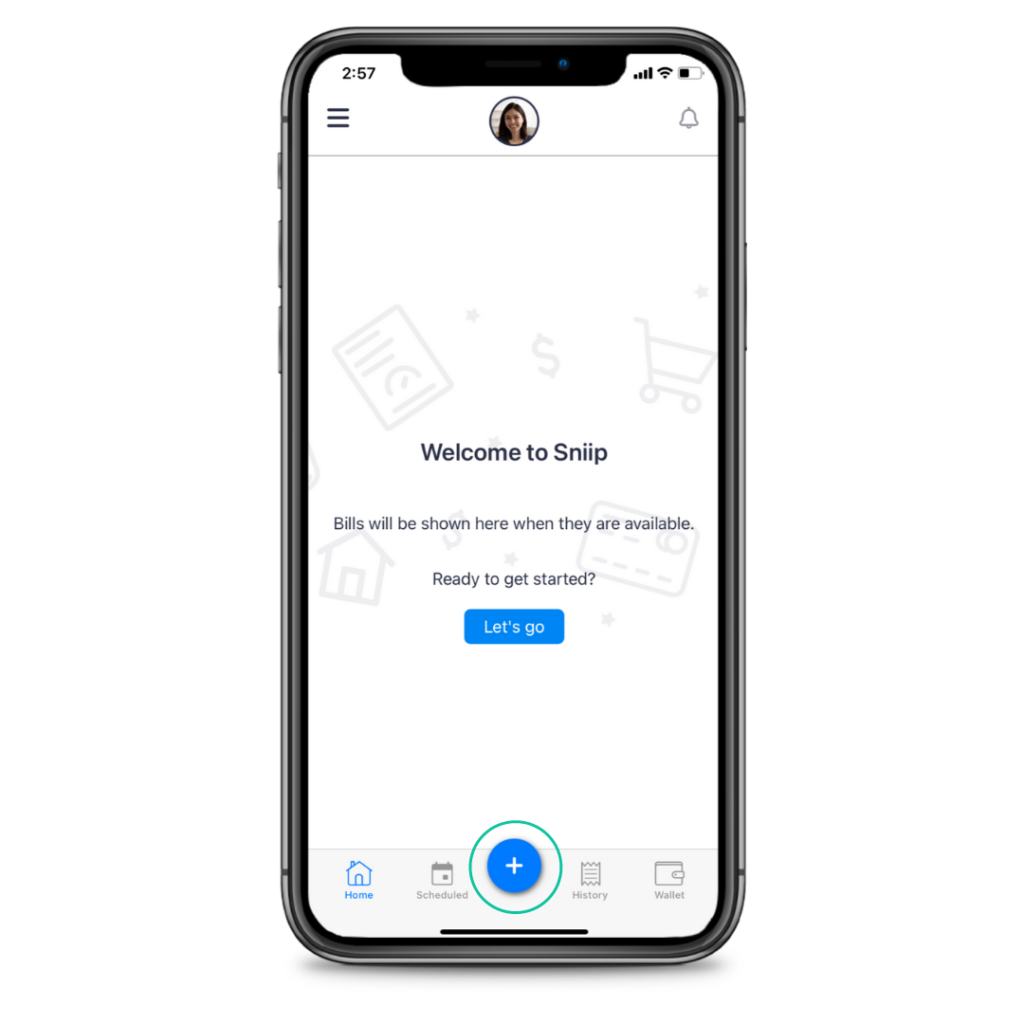
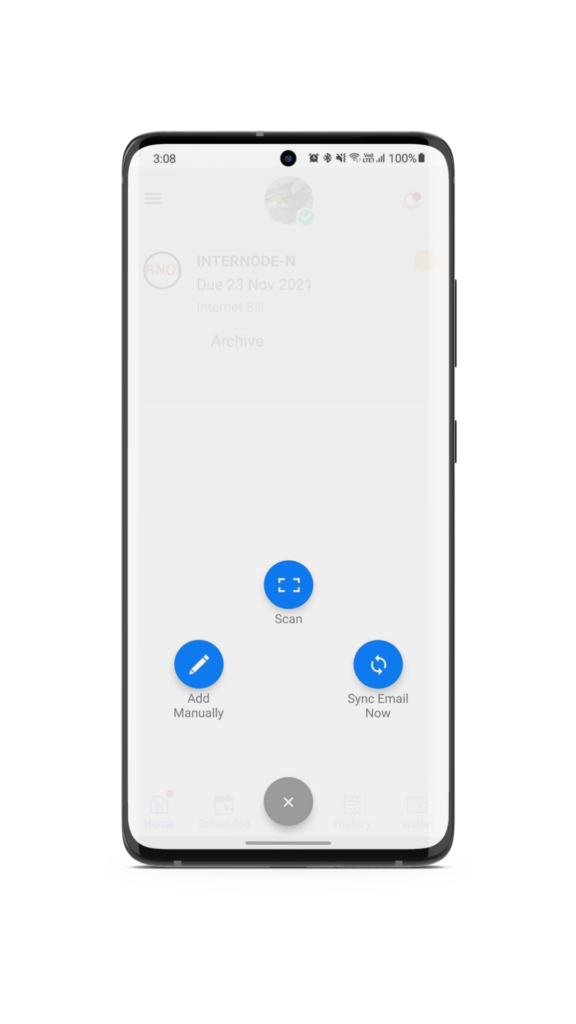
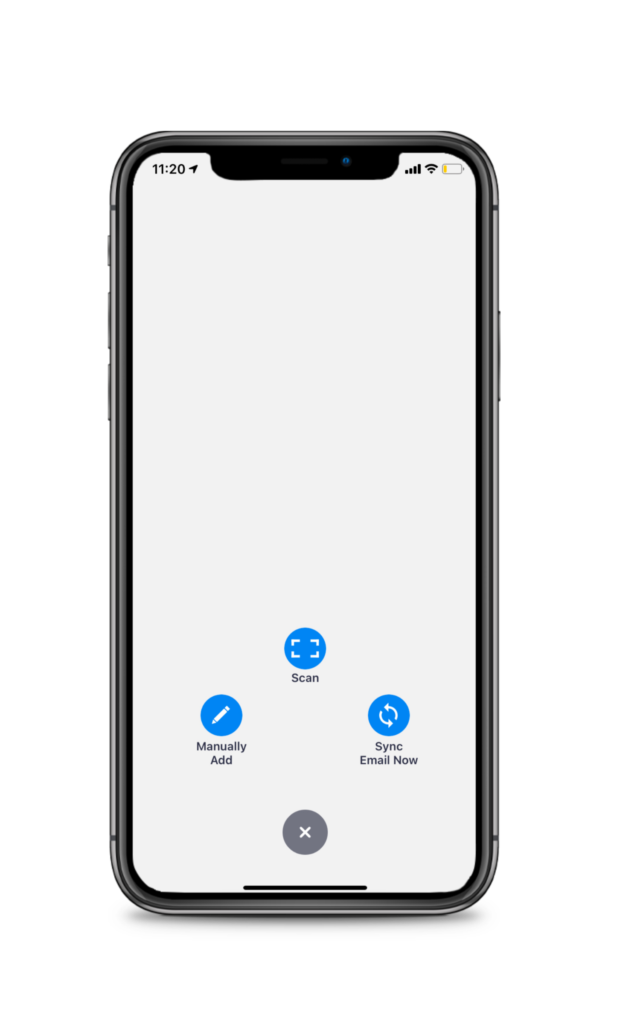
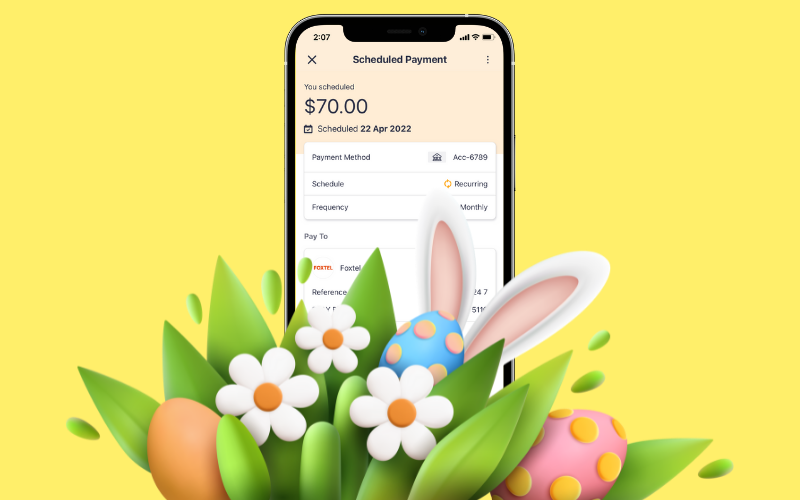
Open the Sniip app, tap the ‘+’ button and select ‘Scan’. Scan the BPAY Biller Code on your bill, then schedule it for when it’s due. 

Repeat this process until all your bills are loaded into the Sniip app and ready for payment. Avoid any late fees and rest easy knowing your bills are sorted! 

Seamless bill delivery 

Sign-up for seamless bill delivery and have your bills automatically added to the Sniip app when they arrive in your inbox. 

This is hands down our favourite feature in the Sniip app. Here’s how to do it:

Open the Sniip app, tap the side menu, select ‘Import from Email’ and start getting your bills automatically delivered to Sniip. 

You’ll receive a push notification when they arrive in the Sniip app. Your bill will be ready to schedule or pay!
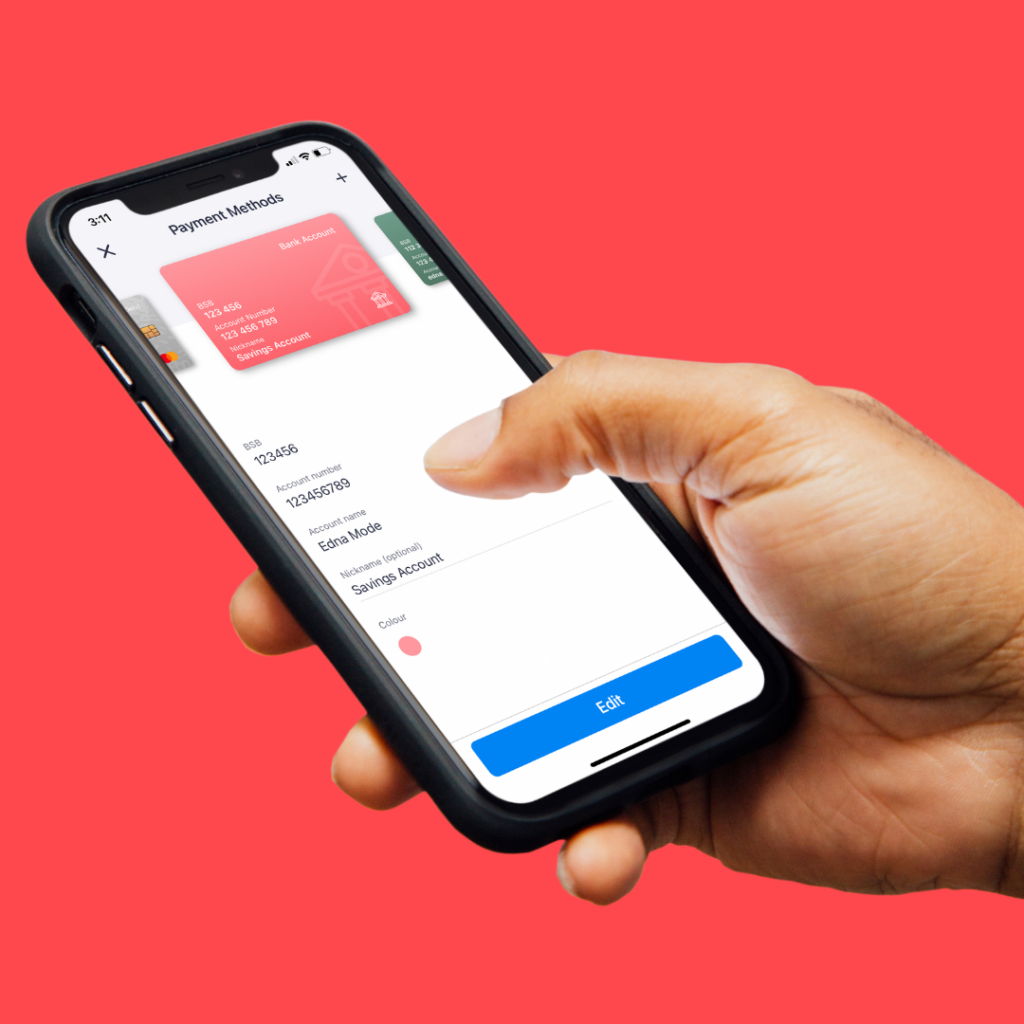
New Feature Alert: BSB + Account Numbers

New Feature Alert: Paying from BSB + Account Number

Sniip is growing, and changing!

Meet our newest (and most requested) feature, paying from a Bank Account! 

It’s important to us that we always offer a free option in the Sniip app, and paying from a bank account is super easy to use! 

With the addition of bank accounts as a payment option, we have enabled a new way for you to use Sniip with no processing fees.

If you’re a debit card user with Sniip, rest assured we haven’t removed the ability for you to pay with your own funds for free – it’s just via your bank account now as opposed to a debit card. 

This means you’re still able to access all of Sniip’s convenient features and functionality at no cost. 

As always, we remain committed to providing you with the best bill payment service possible. 

Pay from BSB & Account Number

Setting up your Bank Account is easy! We’ve covered all the basics for you including: 

  • How to verify your Sniip account 
  • Adding your BSB & Account Number
  • Paying from a BSB & Account Number
Note: Before adding a Bank Account, you must verify your identity. 

We understand that verifying your identity can be an onerous task and appreciate your assistance! Customer protection, card security and fraud prevention are the highest priorities at Sniip. We’ve put together an FAQ if you have any questions, and as always our Sniip Support Squad are only a phone call away. Feel free to contact us on (07) 3268 7710 or email customercare@sniip.com

New Feature Alert: Preferred Names

New Feature Alert: Preferred Name

New Feature Alert: Preferred Names

You asked, we delivered!

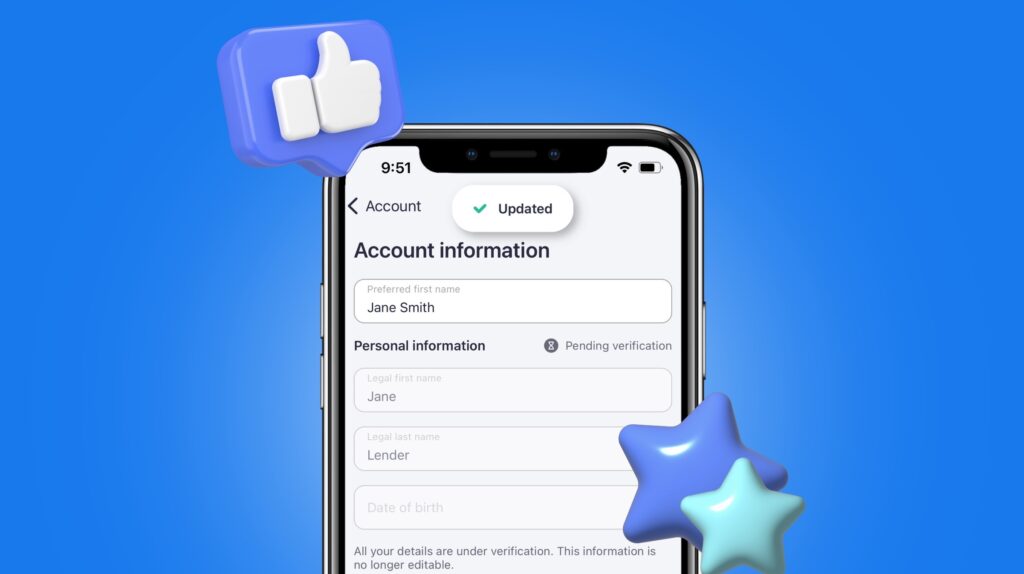
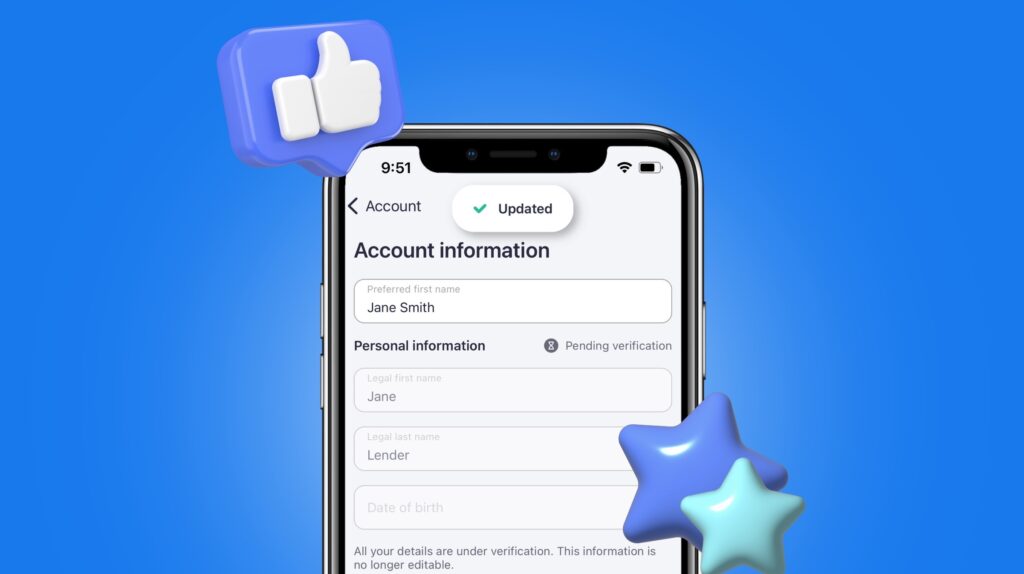
You can now add a preferred first name to your user profile in the Sniip app.  

At Sniip, we recognise, for a whole range of reasons, you may desire an alternative name (preferred name) by which you are addressed. 

We don’t need to know the reason, but it’s important to us, because it’s important to you. For this reason, you can now submit your preferred name on your account. 

Definitions

Legal name: The name as it appears on your local documentation such as your Driver Licence or Passport. 

Preferred name: A preferred chosen name is any name you wish to use other than your legal name. Your preferred name will be appear in the Sniip app and be used in our communications with you. 

How do I add my preferred name to the Sniip app?

Existing Users

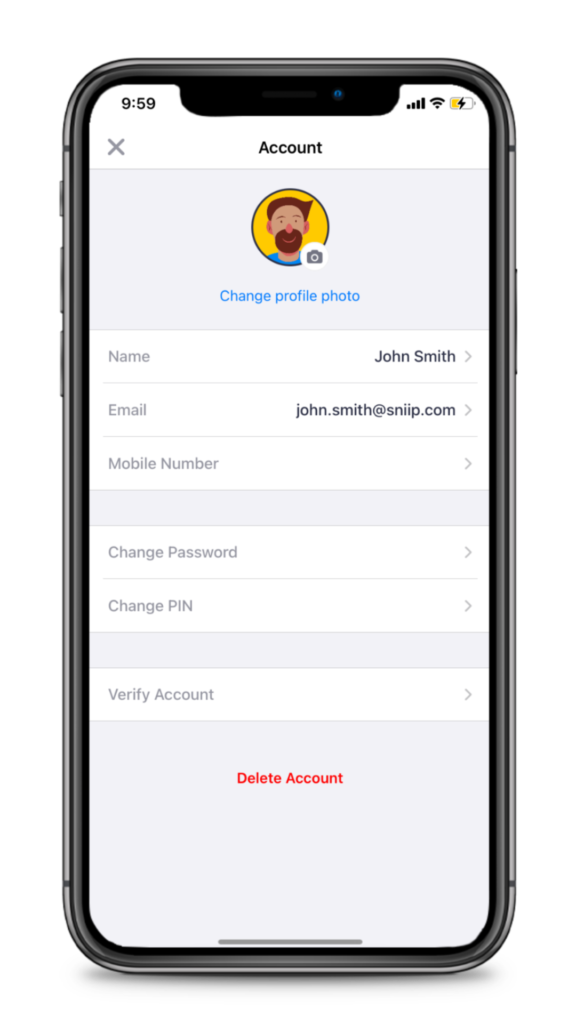
  • To update your preferred name in the app.
  • First tap on your profile picture from the home screen to access your account details.
  • Tap ‘Account information’ and update your preferred first name. 
  • Tap ‘Done’ on the keyboard to update!

New Users

  • When you are signing up for Sniip and creating your profile, you will be able to enter your legal first and last name, as well as your preferred name.
  • This step is totally optional – and you can also change your preferred name at any time, see below!

To find out more on how to get started with Sniip, click here. 

Why is it important?

We sometimes are required to review transactions and verify a users identity (just like a bank would, in order to pay a bill). In order for Sniip to verify your identity we need your legal name to match the name on your Drivers license or Passport. 

At Sniip, we take payment security very seriously. If you have any questions, check out our FAQ. 

Is there a new feature you’d like to see in the Sniip app? We’ve love to hear it! Send us an email with your idea to customercare@sniip.com and we’ll pass it onto our Technical Development team! 

Redeeming your Sniip Rewards


Redeeming your Sniip Rewards

We have been getting a few questions from you recently on how to redeem your Sniip Rewards. 

Maybe you’ve been busy referring your friends, or came in through one of our partners? Regardless, we’re so happy that you have been busy earning rewards!

We know that when it comes to budgeting and bill payments, there’s some times where we all need a little more help! That’s why Sniip gives you full control over how and when you redeem your Sniip Rewards. 

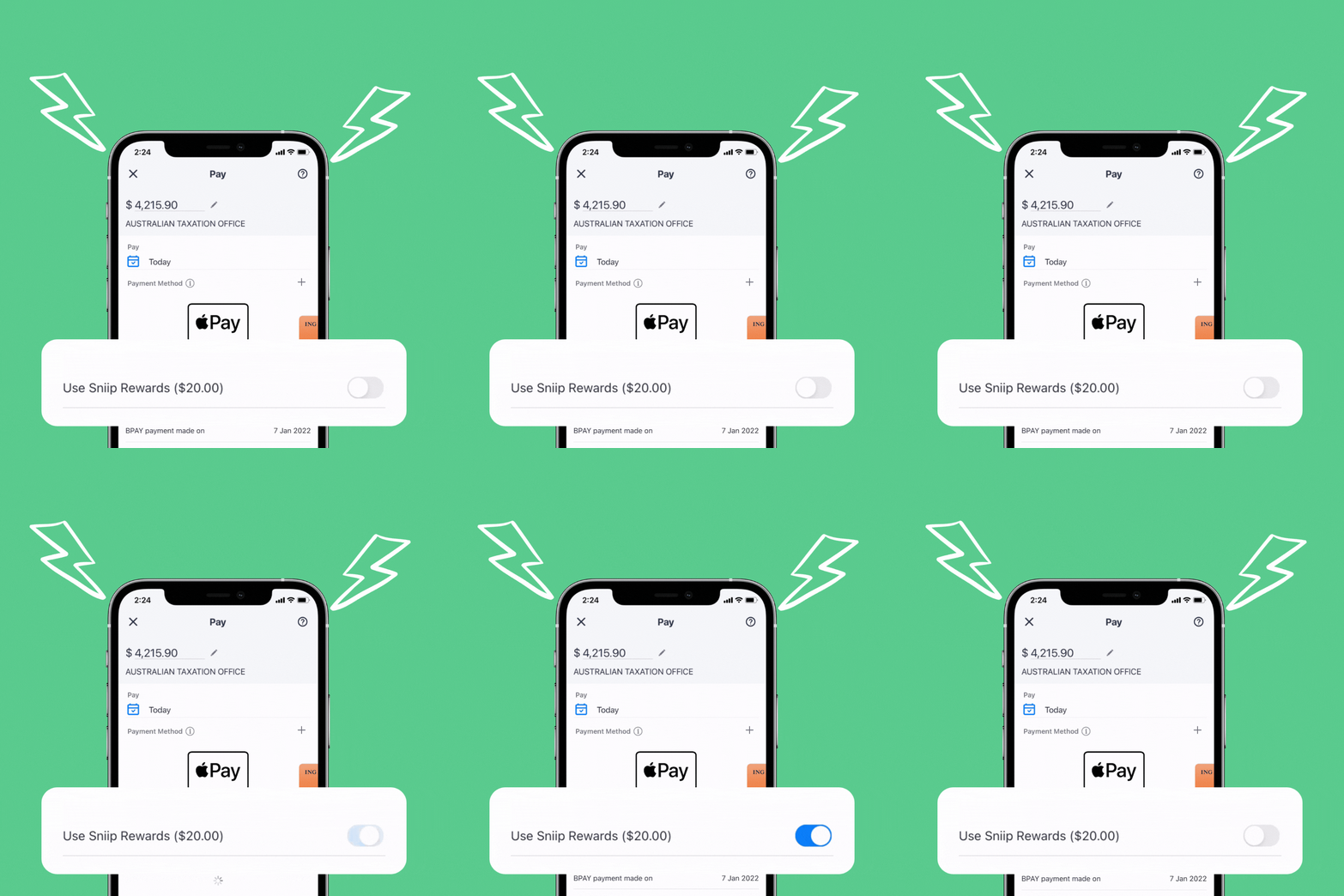
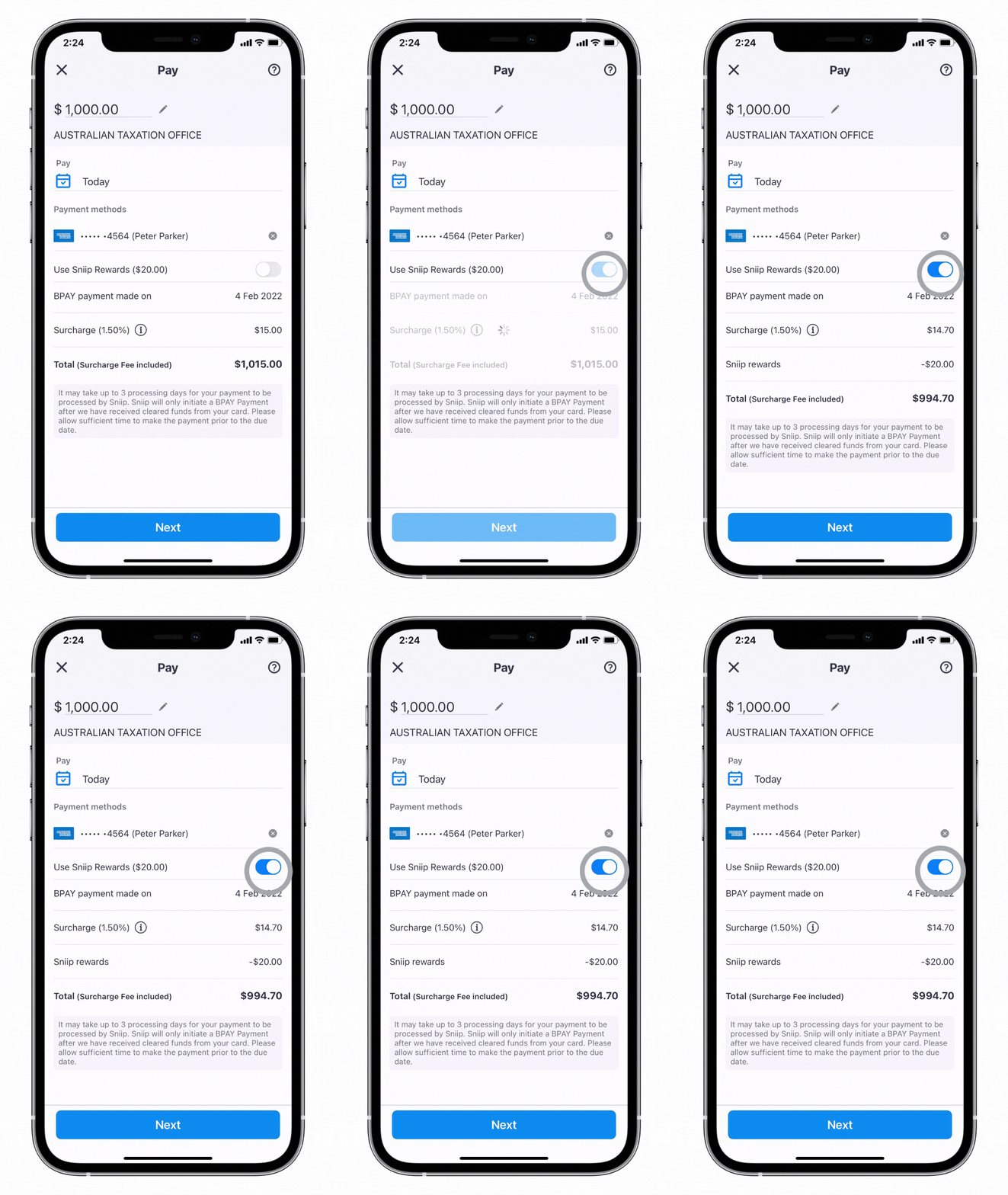
Watch below to see how to Redeem Your Sniip Rewards Balance when making a bill payment. 

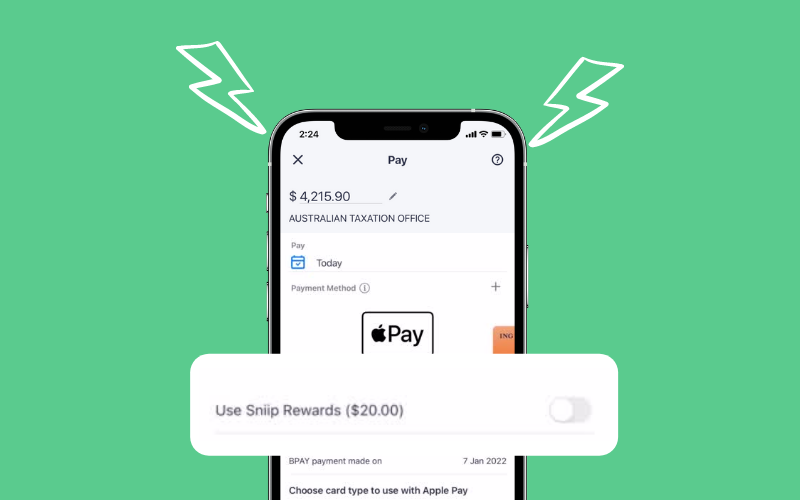
It is important you ensure that the toggle in the payment screen is switched ON. 

This will enable your Rewards balance for that bill, and you will see the final payment amount with your Rewards balance deducted. 

Please note Sniip Rewards are unable to be used for scheduled payments, or when making payments via the Sniip QR or Australia Post ‘Post Billpay’ code. Rewards can only be redeemed for a bill with a minimum payment of $50.

Let us know if we can help in any other way by contacting our Sniip Support Squad at customercare@sniip.com or at (07) 3268 7710.

New Feature Alert: Sniip Wallet Designs

NEW LOOK: Fresh feel for your bank cards

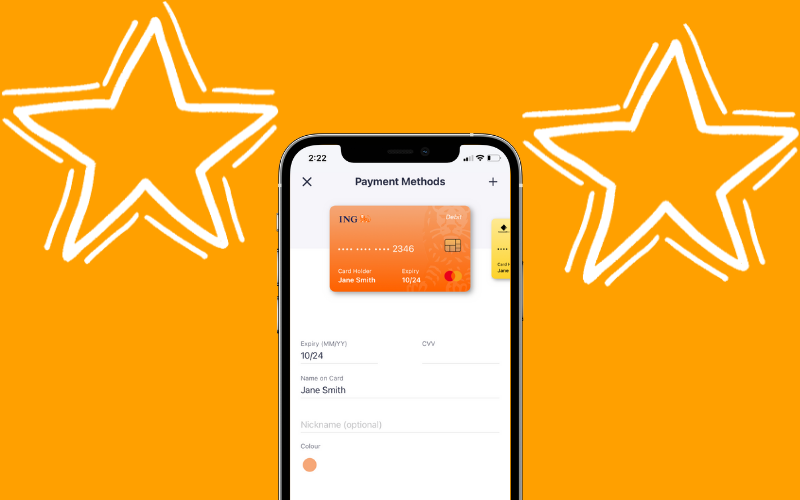
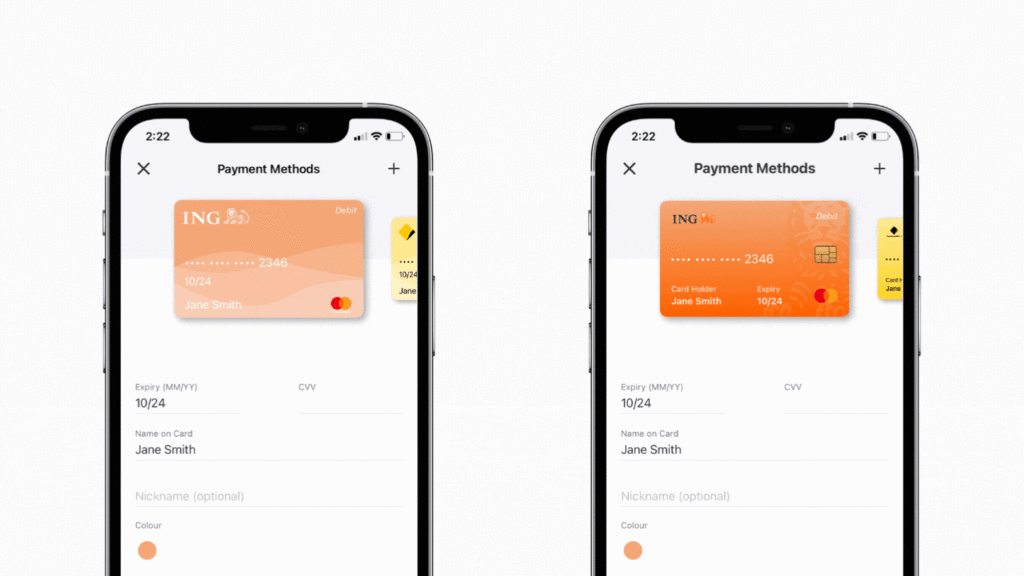
We’ve been busy little bees here at the Sniip office and we’ve got 14 fresh and fancy new designs for your credit/debit cards in your Sniip wallet. 

Check out the new designs for these 14 bank cards: 

  • ANZ 
  • Westpac
  • BOQ
  • NAB
  • Suncorp
  • Macquarie
  • Bendigo
  • Bankwest
  • St George
  • Up
You can also customise the colour of your card in your Sniip Wallet. Just tap ‘Edit’ on your payment method and choose from the colour options available – easy! 


Before!

After!

Top three ways to set & forget your bills

The festive season is here and we’re sure you have more important (and fun) things to worry about than paying your bills! 

That’s why we’ve created a few simple steps, so you can put on the Out of Office and set and forget your day job (and your bills). 

  • Schedule your bill payments 

Sign-up for 'auto-import'

This is one of our fan favourite features in the Sniip app. You can now have your bills containing a BPAY Biller Code automatically imported into the Sniip app!

When you sign-up for auto-import, you’ll receive a handy push notification when a bill has arrived – presented in the app ready for payment or scheduling. 

Check out the simple how-to on setting up auto import, here

Schedule your bill payments

Import your bill to Sniip using your chosen method, then schedule your bills for when they’re due. That way, you can rest easy knowing that when the due date rolls around, payment is scheduled and you are sorted!

This is a great time hack for rego, rates, or any bills that arrive early – you don’t want to pay them before they’re due, but don’t want to miss the due date either! Now you can relax 😎.

Set-up recurring payments

Recurring payments are perfect for bills like rent, phone bills, health insurance, etc. 

You’re probably wondering: Why don’t I just set up a direct debit with my biller? Well, with recurring payments, the control is all yours! 

Gone are the days of jumping through endless hoops with your biller to have your direct debit set up, halted or cancelled… let alone handing over your bank account details to your biller!

You’ll never need to phone the biller to update your bank account details again, simply by creating a recurring payment in the Sniip app! 

Check out how to set up recurring payments, here

Feature Alert: Multi Scan

Pay multiple bills at the same time!

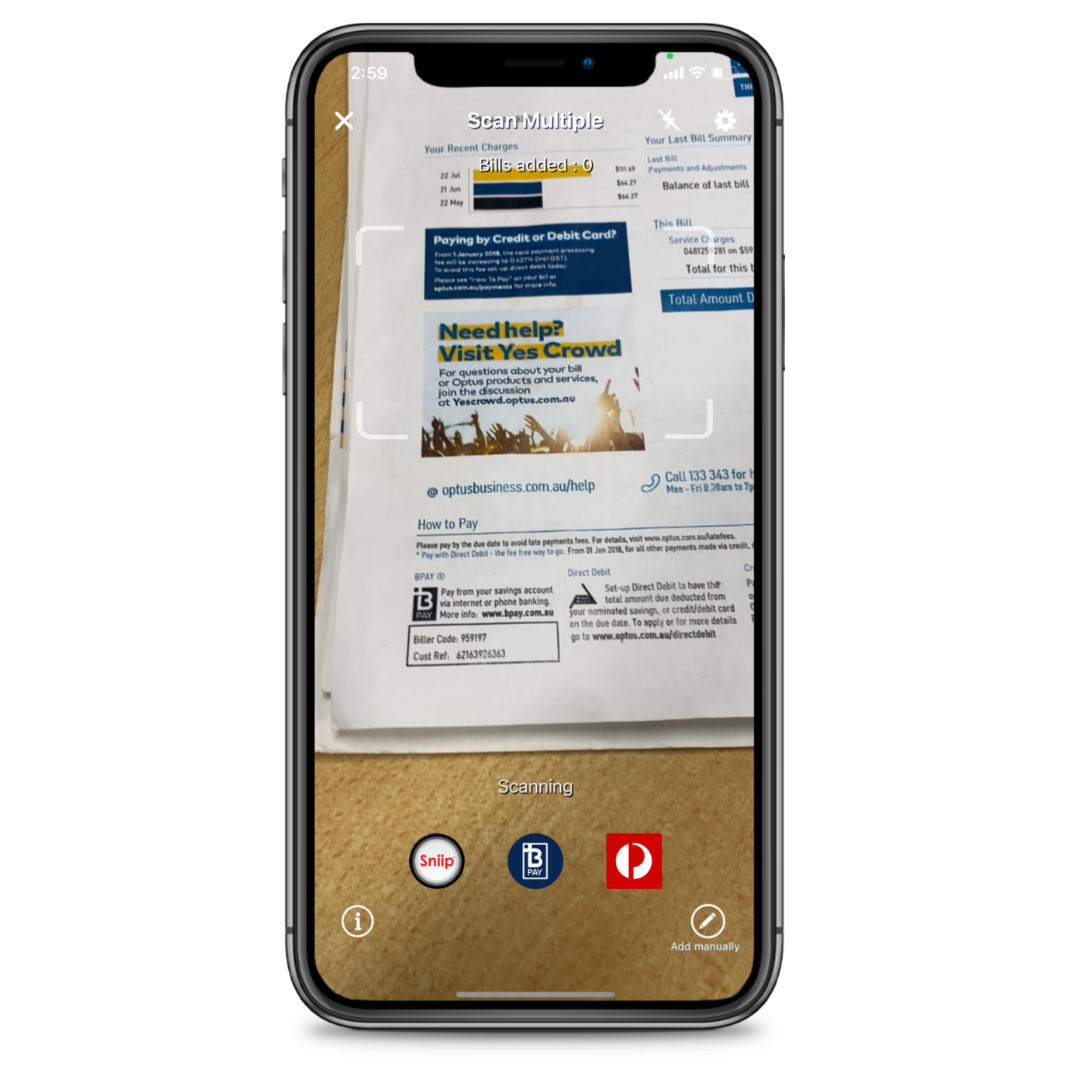
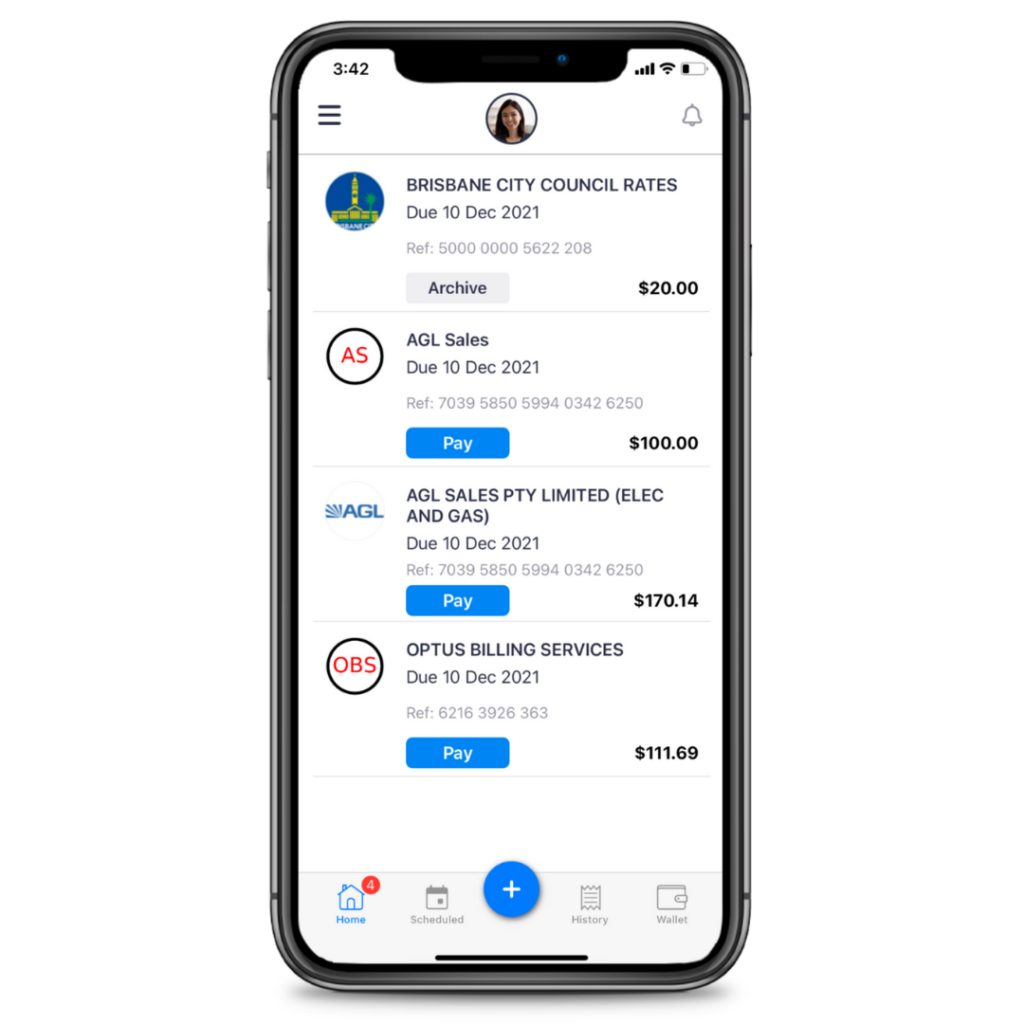
There’s a fun little feature in the Sniip app we wanted to share with you today. If you’ve got multiple bills (or an entire pile) waiting to be paid, this is the life hack you need! Meet, multi scan!
 
That’s right, you can activate multiple scan mode in the Sniip app to scan in as many bills as you like, without interruption. 

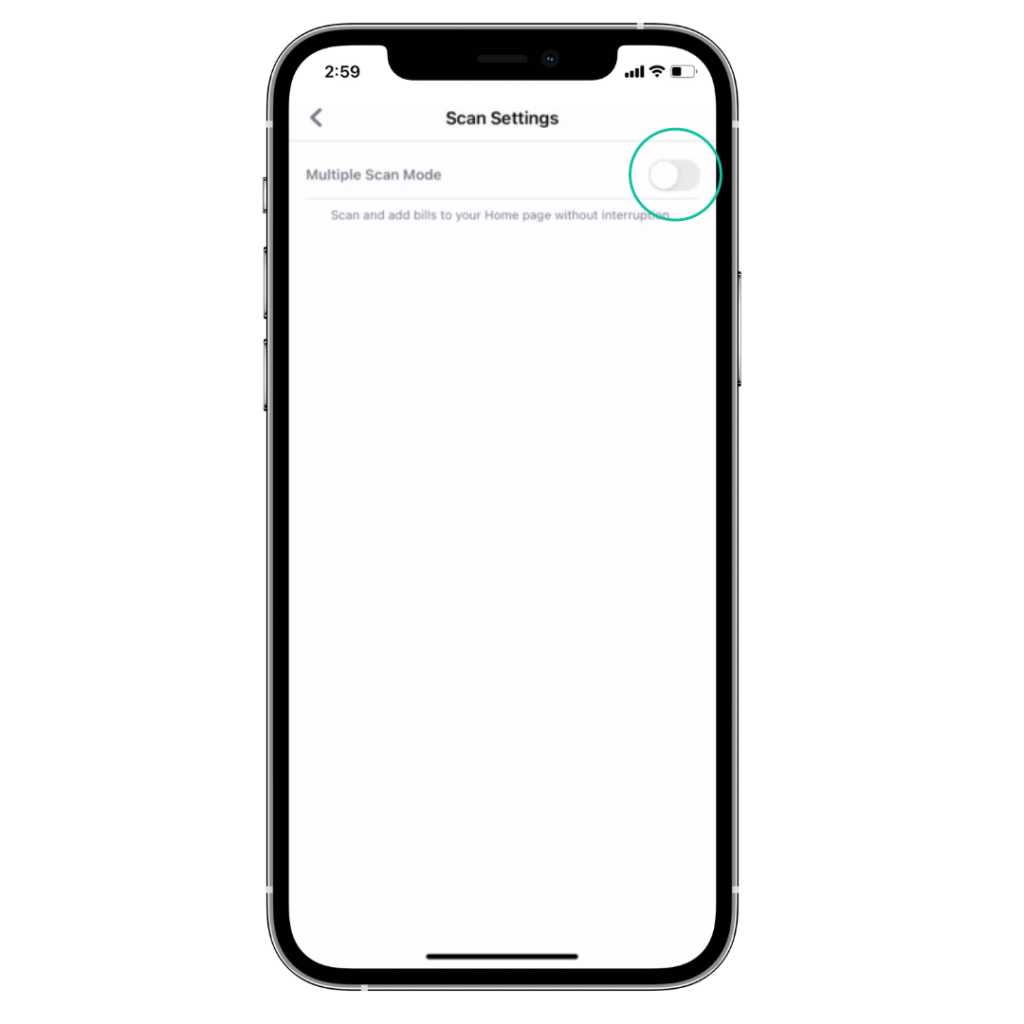
Here’s how to activate multiple scan mode:

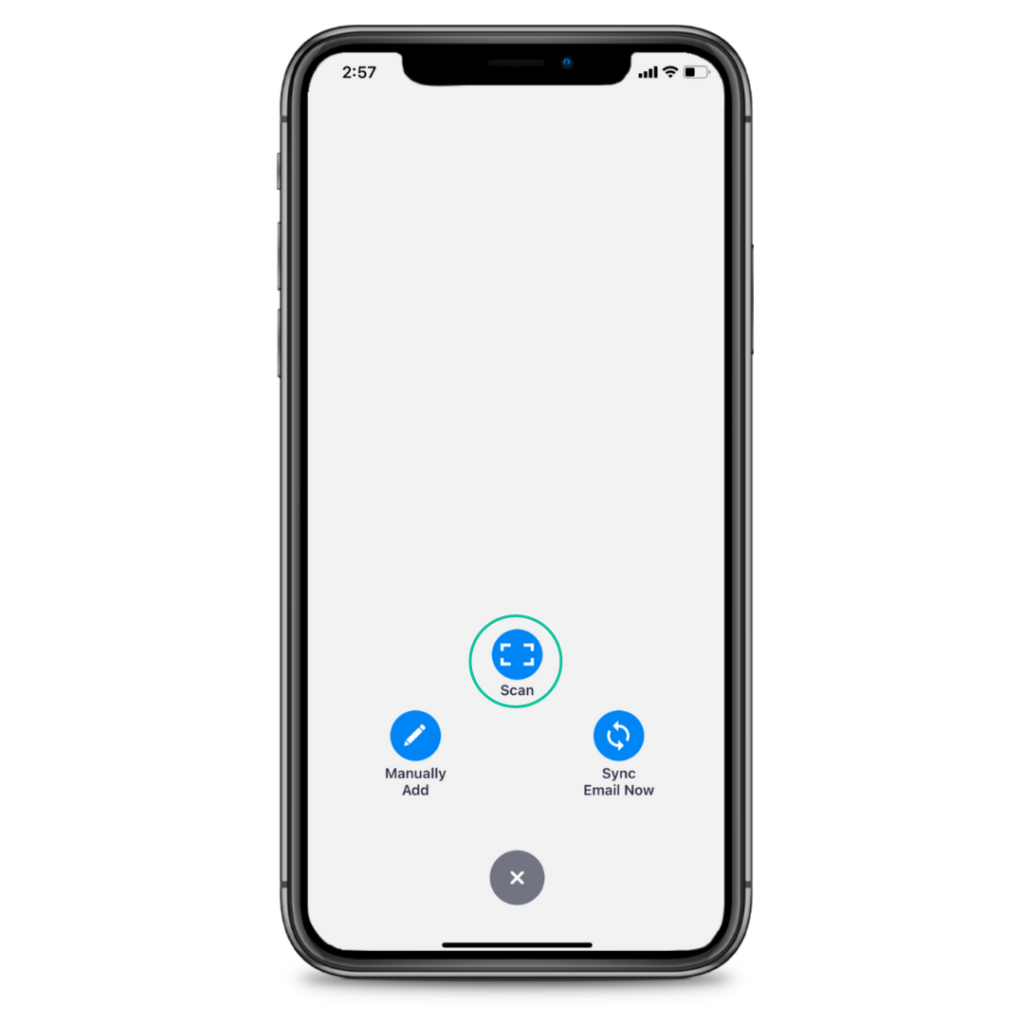
1. Tap the ‘+’ button, then select ‘scan’

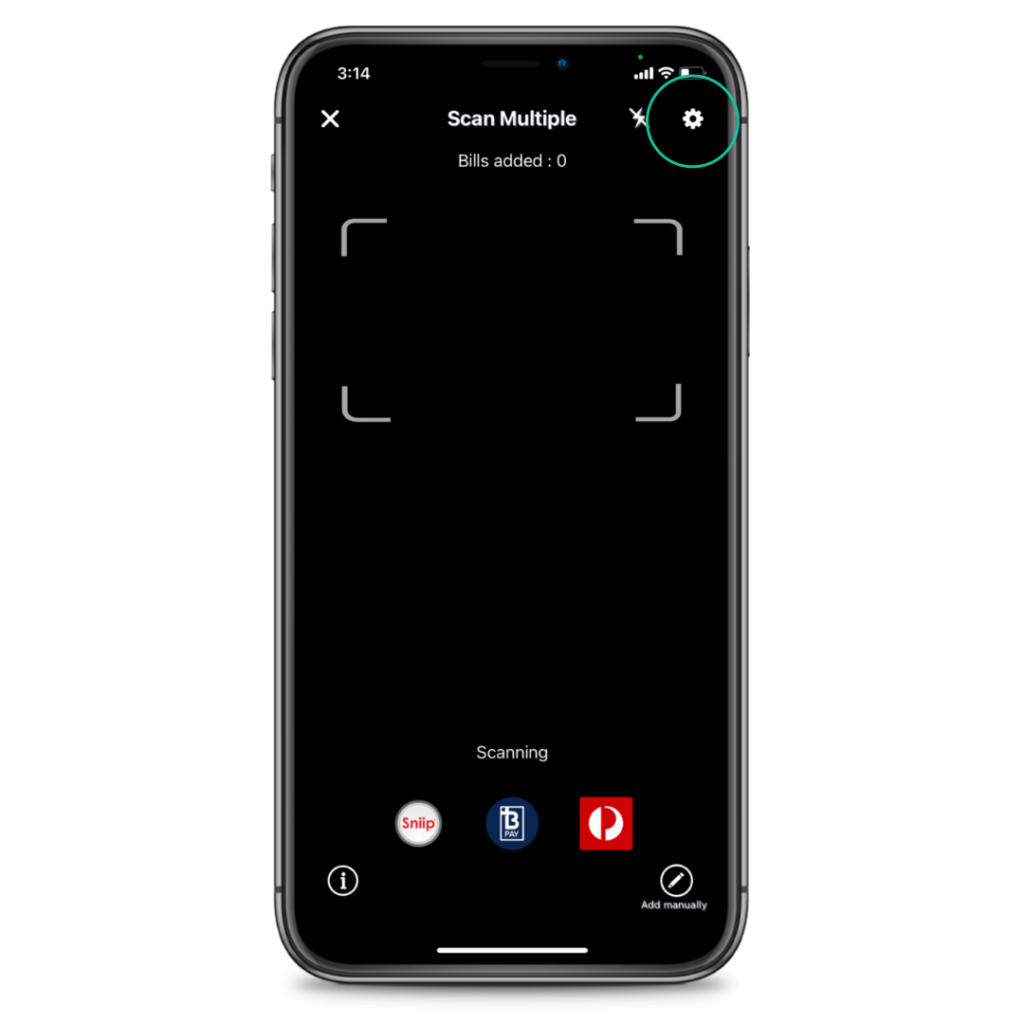
2. Tap the ‘cog’ ⚙️ in the top right corner and turn on Multiple Scan Mode

3. Scan your first bill, then keep scanning to your heart’s content. Done in a Sniip!

Have a feature you’d like to see in the app? Or a question about scanning multiple bills? Our friendly Sniip Support Squad is here for you! Email  or call (07) 3268 7710.

New Feature Alert: Add a profile picture

New Feature Alert: Adding Profile Pictures!

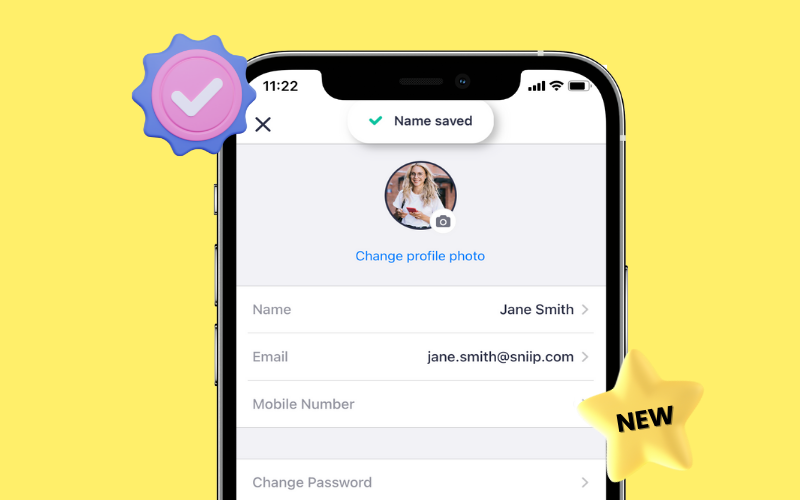
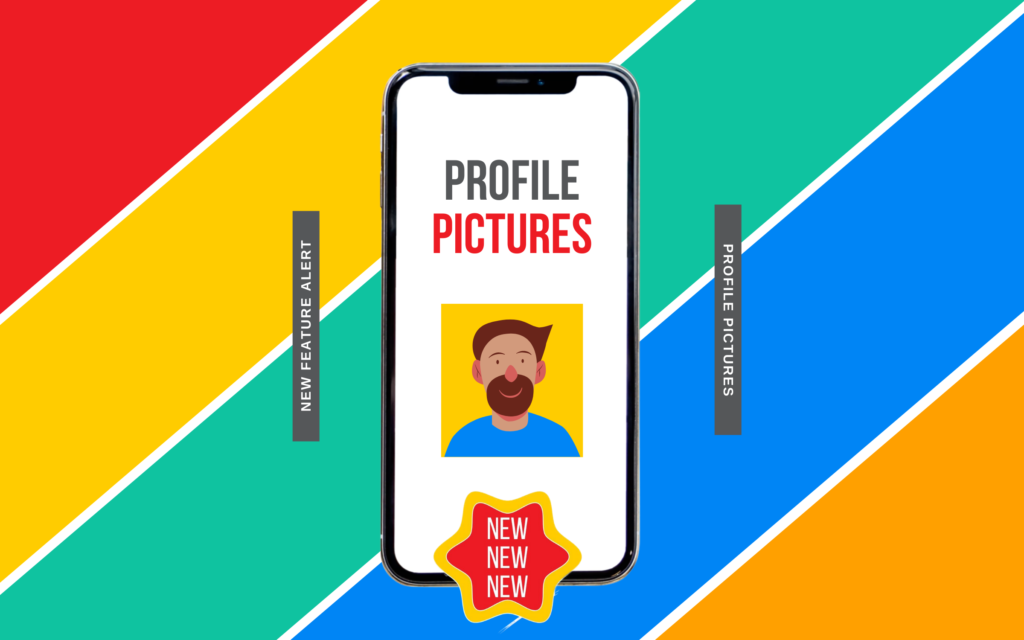
Good news everyone! We wanted to let you know about a cool new feature in the app – adding your profile picture! That’s right, you can now personalise your Sniip account with your profile picture. Make your Sniip app feel like it’s truly your own!

How to do it:

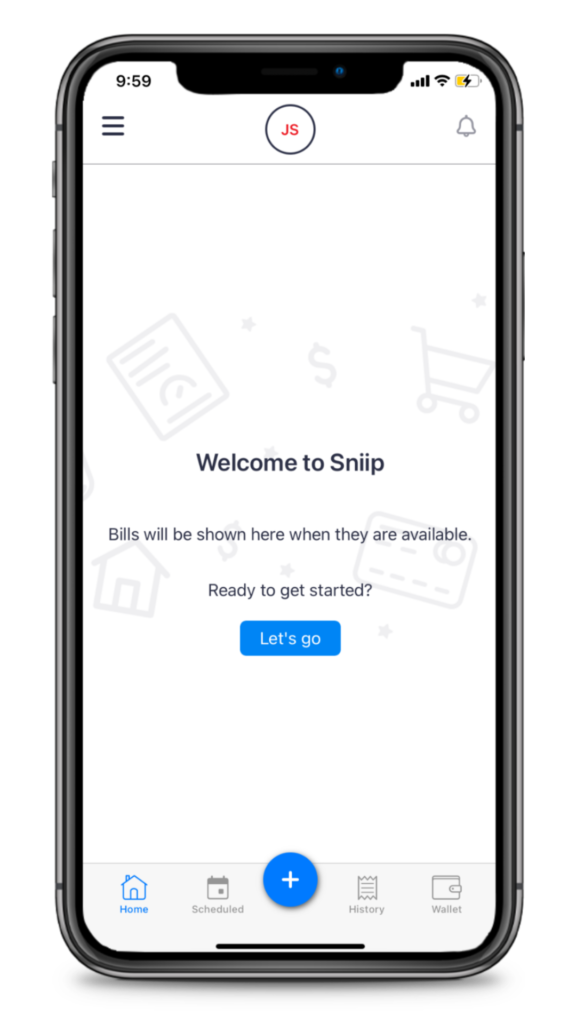
Step1. To add your profile picture, simply tap on your initials at the top of the home screen. 

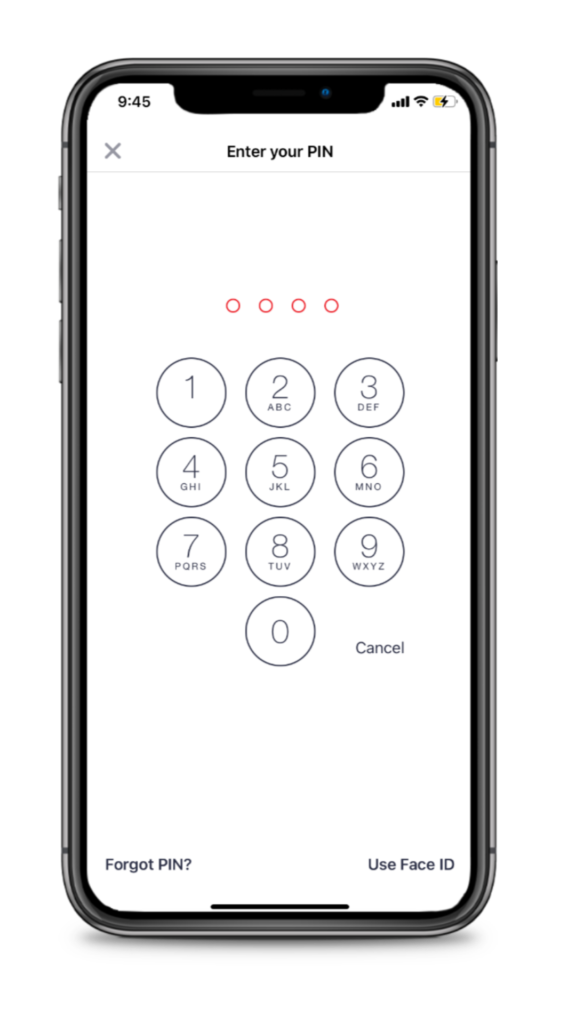
Step 2. Enter your pin to access your account details. 

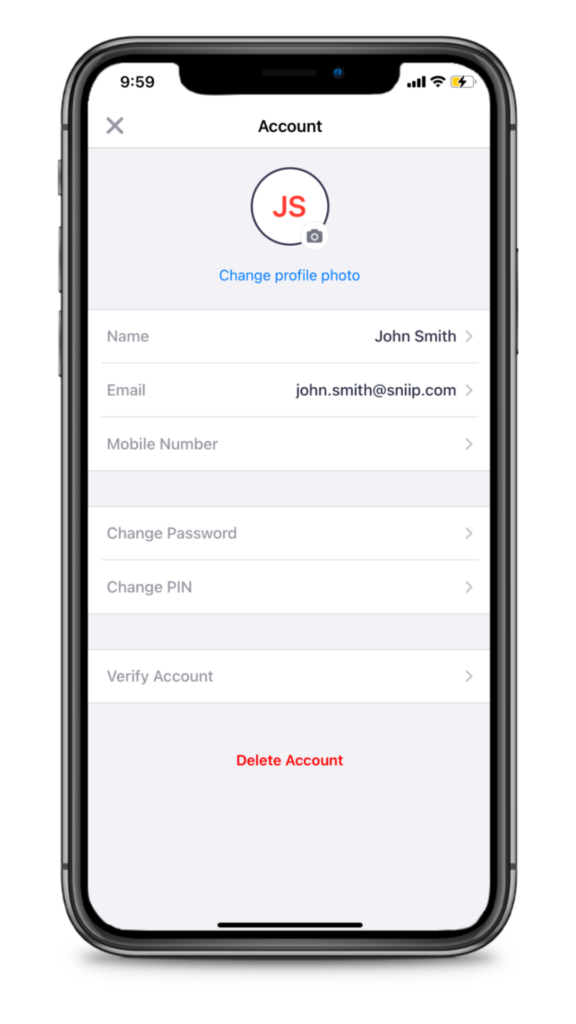
Step 3. Tap on profile photo

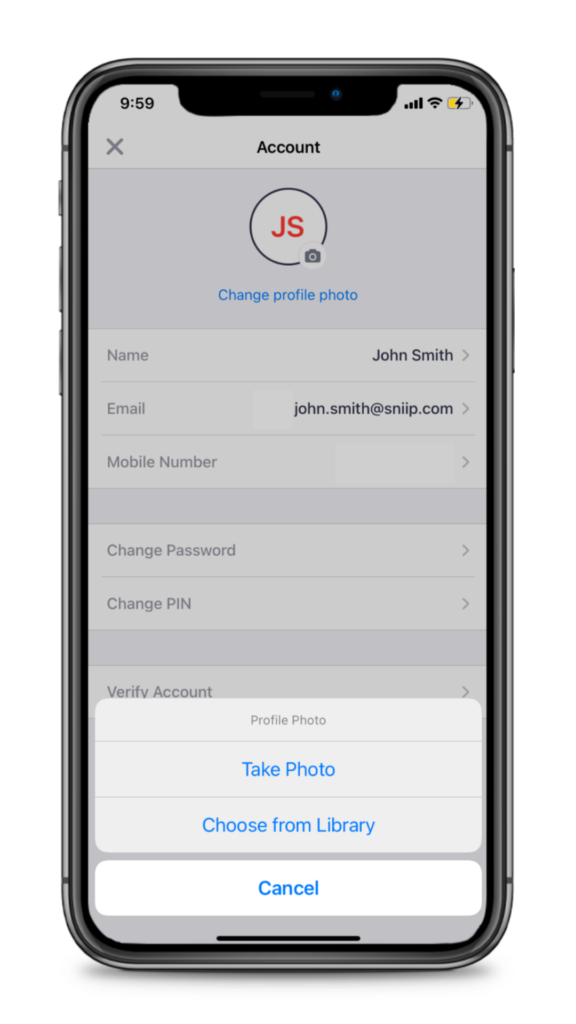
Step 4. Take a fresh photo or select something from your photo library. 

Step 5. Your new profile photo should appear and now be displayed in the Sniip app!

Would you like to see more personalisation options in the Sniip app? Send us an email at customercare@sniip.com – our Sniip Support Squad would love to hear from you!

New Feature Alert: Google Pay

New Feature Alert: Google Play

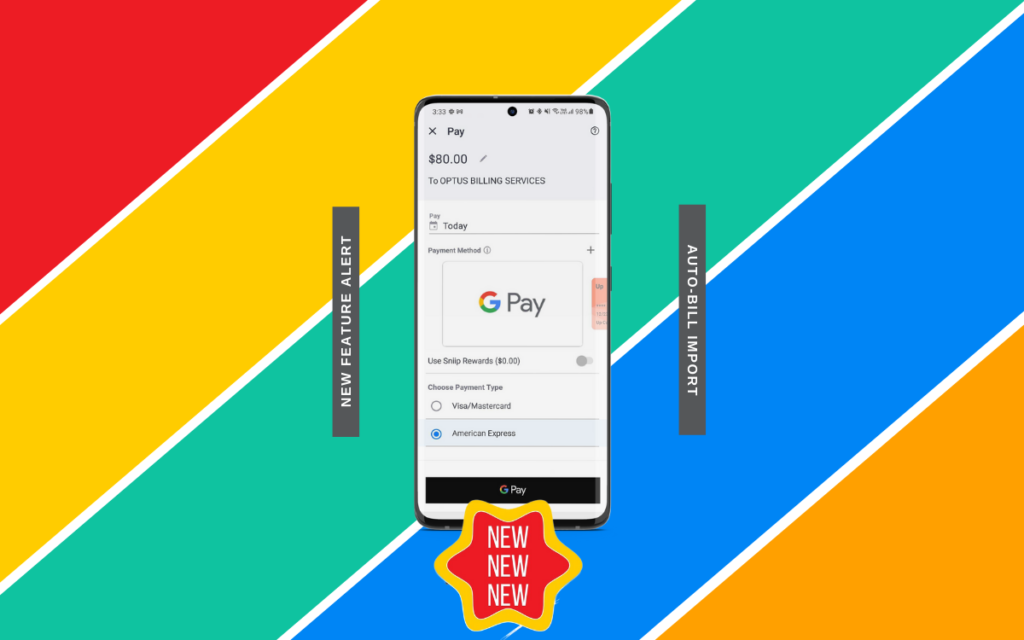
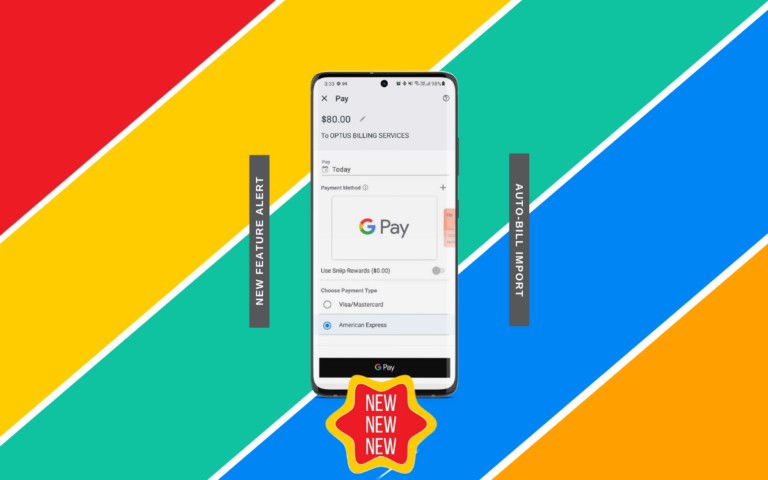
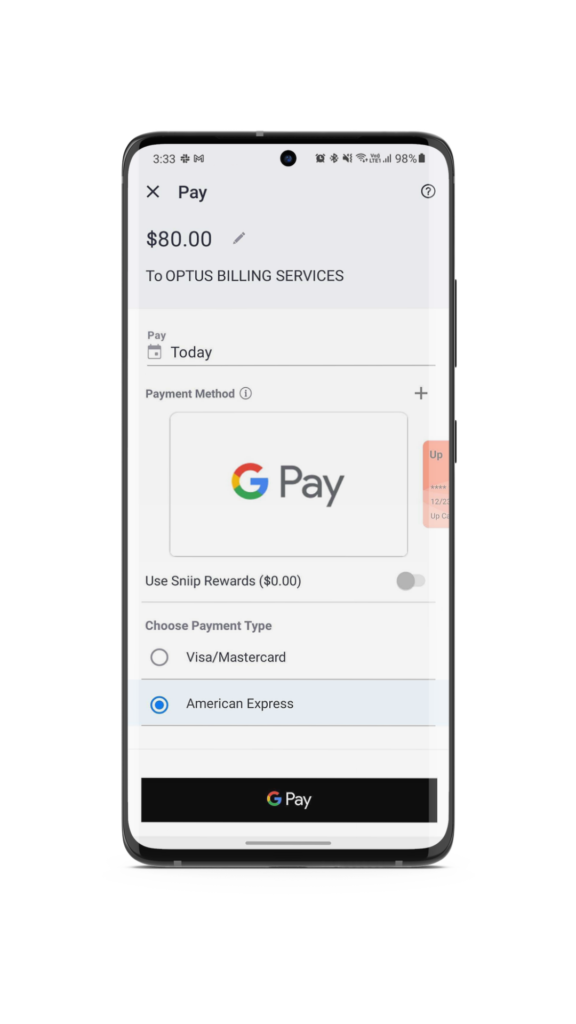
We’re back today to announce to all of our Android friends that Sniip now has Google Pay!

We are so happy that our Android users can now simply register and integrate their digital wallets in a single, seamless process. With Sniip, bill paying is made easy. 

This new feature allows you to use your Google Wallet to pay your bills in the Sniip app.

How to do it:

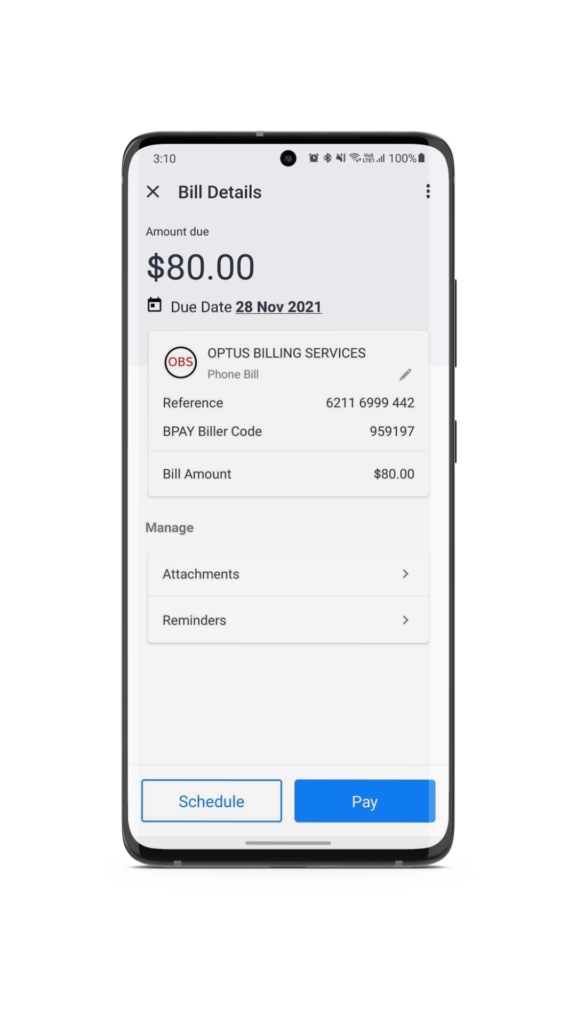
Step 1. Simply add your bill by either scanning, manually importing or syncing your emails.

Step 2. Select ‘pay’. 


Step 3. You’ll automatically see Google Pay as the first option on the pay screen if your biller supports BPAY.


New Feature Alert: Apple Pay

New Feature Alert: Apple Pay!

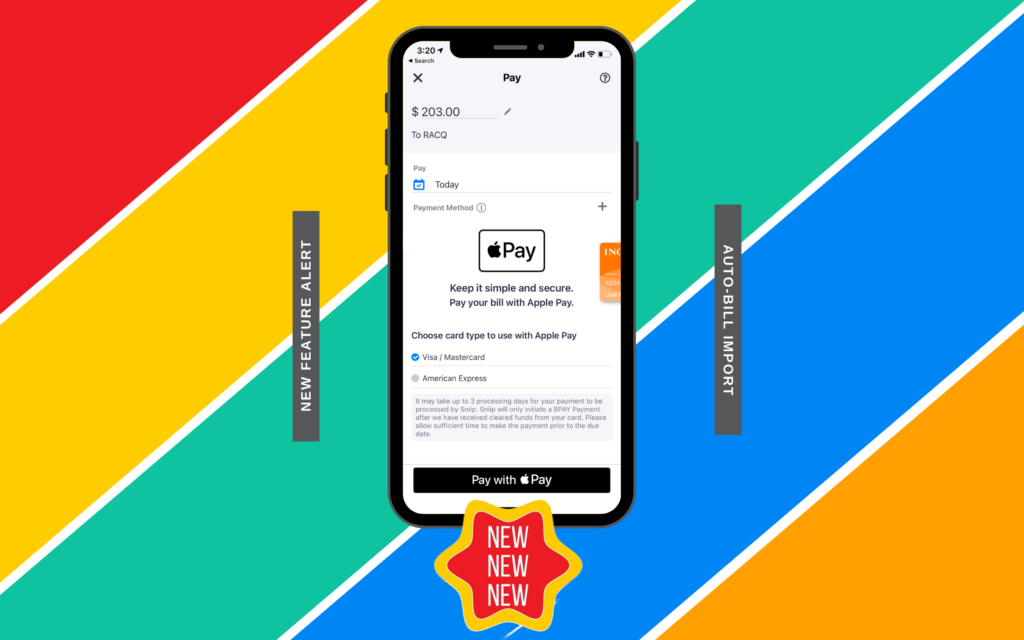
As some of you may know, we have been working very hard and are excited to announce that Sniip now has Apple Pay!

This now means that you can now simply register and integrate your digital wallet in a single, seamless process. 

This new feature allows you to use your Apple Wallet to pay your bills with Sniip!

How to do it:


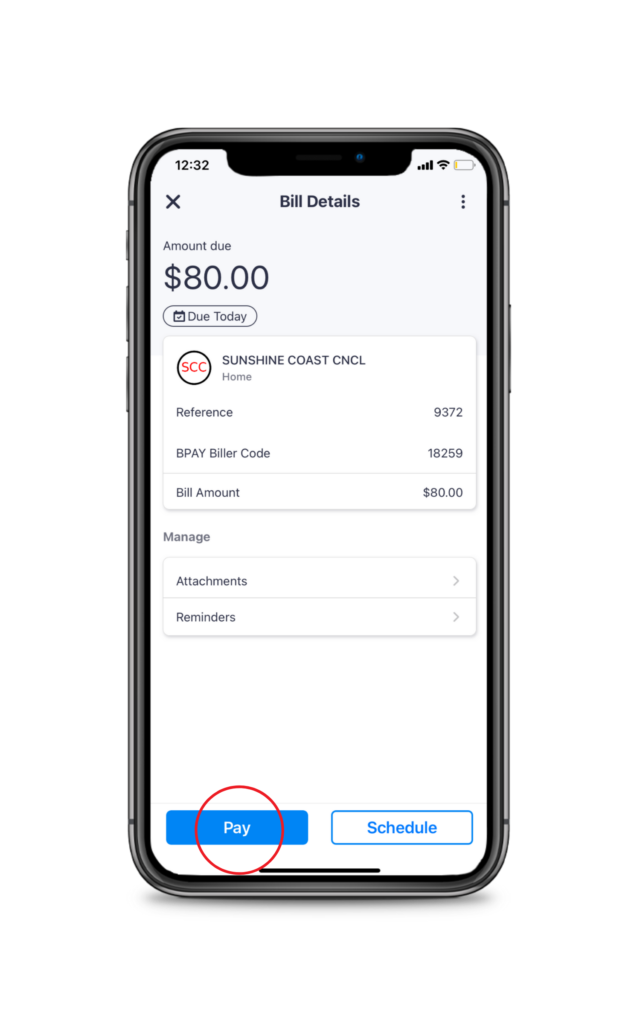
Step 1. Simply add your bill by either scanning, manually importing or syncing your emails.

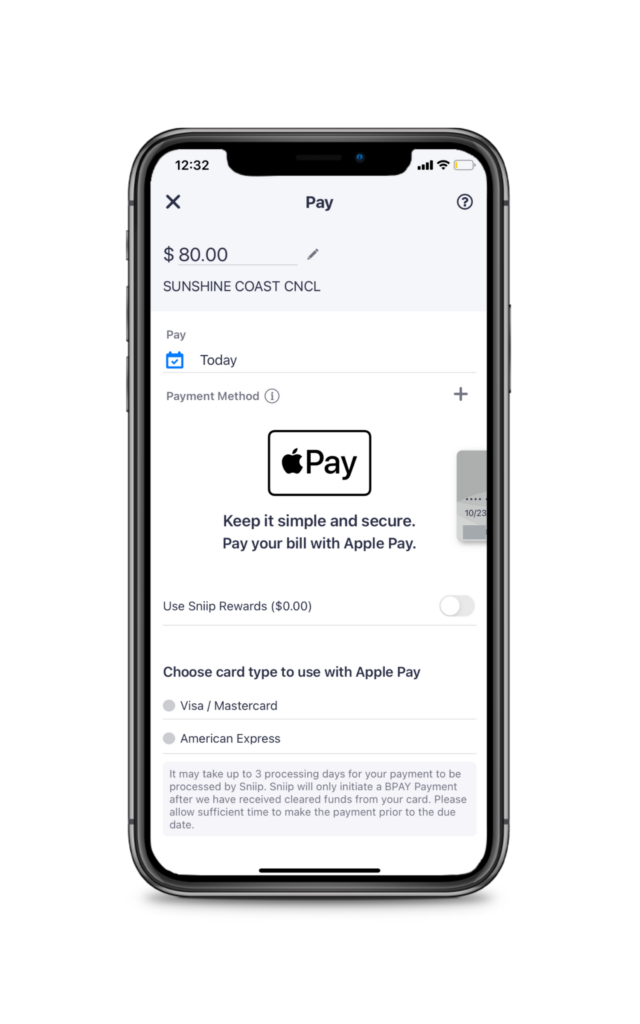
 Step 2. Select ‘Pay’. 


Step 3. You’ll automatically see Apple Pay as the first option on the pay screen if your biller supports BPAY.